Automations
An automation is a rule: when something happens, do these steps. Your trade comes with some ready to go. Find them in Settings → Automations.
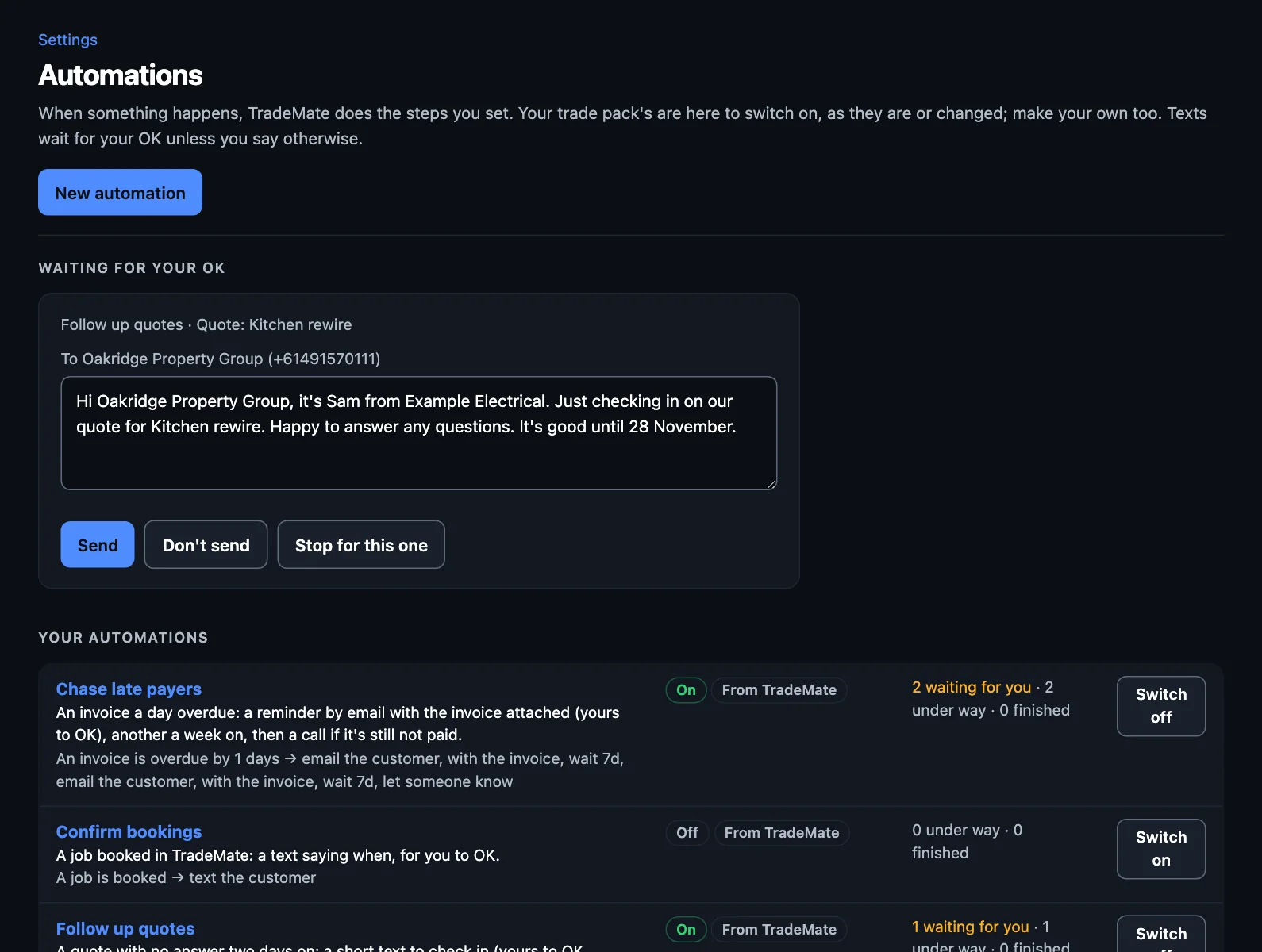
You stay in charge
Texts and emails wait for your OK unless you say otherwise. They show under Waiting for your OK, and on Foreman's decisions. For each you can:
- Send it. Change the words first if you like.
- Don't send it. The automation carries on with its next step.
- Stop for this one. It stops for this customer or job and carries on for everyone else.
If things have changed since it was written, it won't go. A reminder for an invoice that's been paid says so. A text about a job that's since moved is written again with the new day, for you to check.
What's on from the start
- Chase late payers: a reminder a day overdue, another a week on, then tells the office to call.
- Follow up quotes: a text two days after a quote with no answer, then a call if there's still nothing.
- Repeat work: each trade's own, such as smoke alarm checks, backflow tests, the yearly service or gutter cleans.
Ones to switch on
- Confirm bookings: a text saying when, once a job's booked.
- Remind them the day before: a text to say you're coming.
- Invoice finished jobs: drafts the invoice as a job's marked done, and tells someone.
- Thank them for accepting a quote, or for paying.
- Your trade's own, such as telling the office when a certificate's lodged.
Press Switch on or Switch off beside one. An automation only starts for things that happen after it's switched on.
Repeat work
This is money you've already earned the trust for. When a customer's last smoke alarm check was about a year ago, TradeMate finds three free times when the text goes, holds them for a week, and texts the customer a link. They pick one and it's booked. It's offered from a month before it's due, and less for work that comes round sooner. It stops as soon as something of the kind is booked.
It knows the work from the words in a job's title, so name jobs the usual way, such as "Smoke alarm check".
Changing one
Click an automation to change it. You'll see three parts:
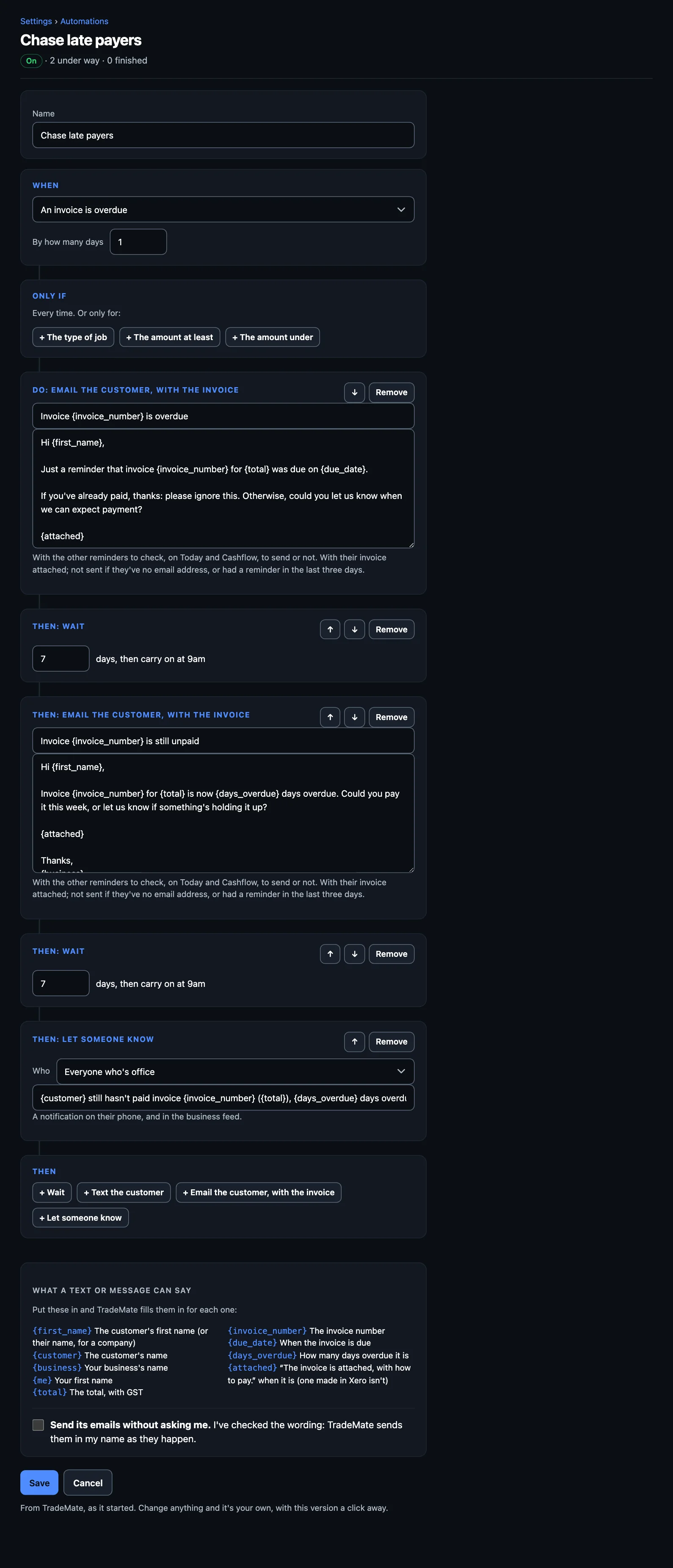
When
What starts it. A job is booked, coming up, started or completed. A job step is ticked off, or all of them are. A job's due again. A quote is sent, unanswered, accepted or declined. An invoice is sent, overdue or paid.
Only if
Leave it to run every time, or narrow it down to a type of job, or an amount over or under a figure.
Do
The steps, in order. Move them up or down.
- Wait a number of days, then carry on at 9am.
- Text the customer, in your words. It isn't sent if they've no mobile.
- Email the customer with their invoice (overdue invoices only).
- Offer them times (repeat work only).
- Draft the invoice from the job card, for you to check and send.
- Tell someone: you, or everyone with a role. It's a notification on their phone, and in the feed.
Put placeholders in the words, such as {first_name} or {total}, and TradeMate fills them in for each one. The page lists what you can use.
Once you change one, it's your own. Use the pack's version puts it back. Press New automation to make your own from scratch.
Letting texts go without asking
When you trust the wording, tick Send its texts without asking me on the automation. By ticking it you've checked the words, and TradeMate sends them in your name as they happen. Those go between 9am and 7pm, Monday to Saturday, not in the middle of the night.
Start with these waiting for your OK. See a few go past first, and when you'd have sent every one as it was, let it go on its own.
What it's done
Each automation's page has What it's done: each run, its state, and why it stopped. Check here if something didn't go as expected.
NextJob steps and checklists →