Your team and roles
One price covers everyone. Add your team and give each person a role, which decides what they see and can do.
Add someone
In the web app, go to Settings → Team. Only the owner can do this.
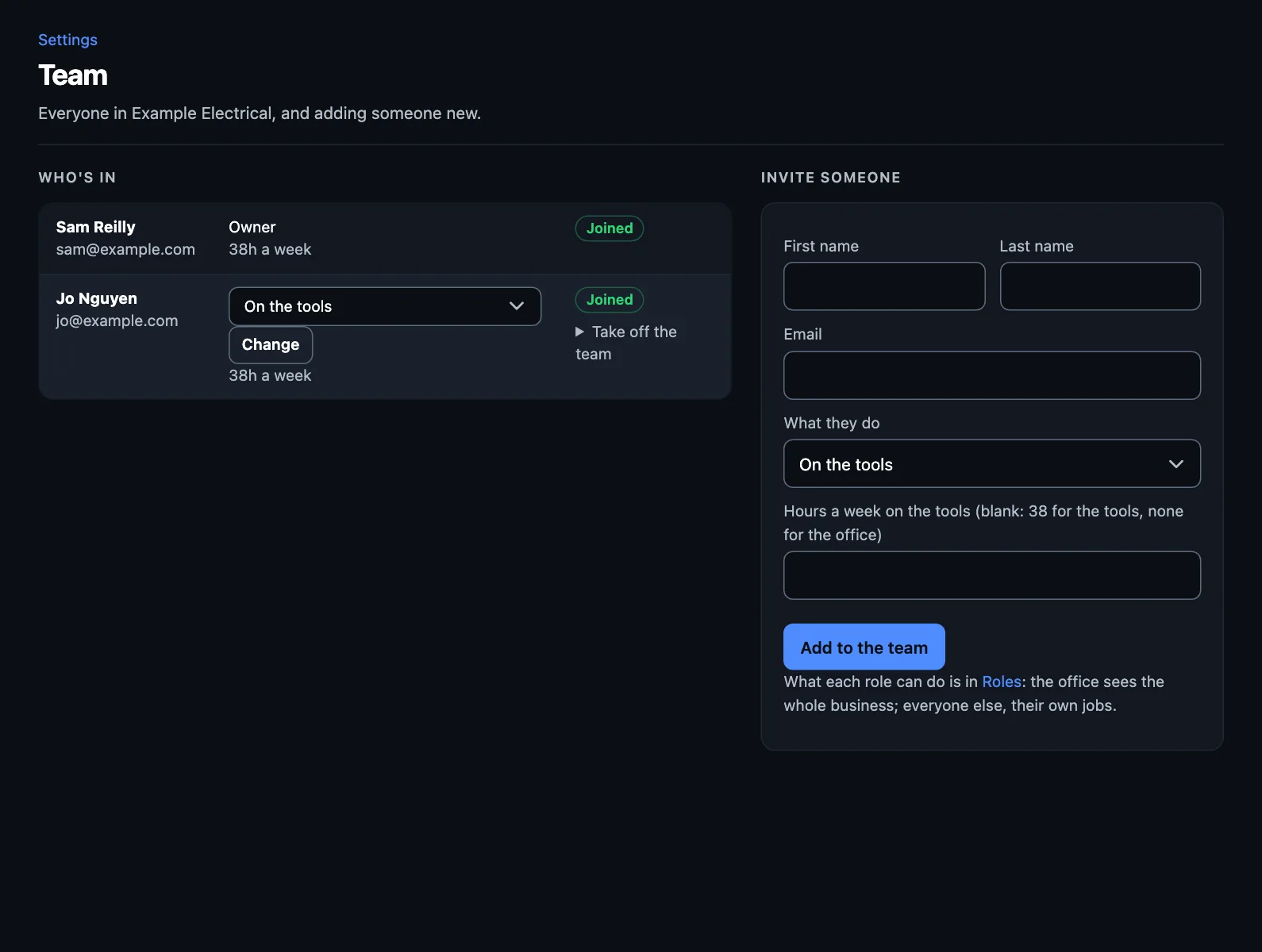
- Under Invite someone, enter their name and email.
- Choose what they do.
- Set their hours a week on the tools. Blank means 38 for the tools and none for the office. This is how TradeMate works out how full you are.
- Press Add to the team.
What they do next: they sign up or sign in to TradeMate, on the app or the web, with that same email address. They'll set up their own password and 6-digit code. Until then, they show as Not joined yet.
What each person sees
The owner
Can do everything. Prices, payments, settings, billing, the team and integrations stay yours: no role can be given them.
The office
Sees the whole business, and runs it day to day: every job, quote and invoice, texts and reminders. Uses the web app and the phone.
On the tools
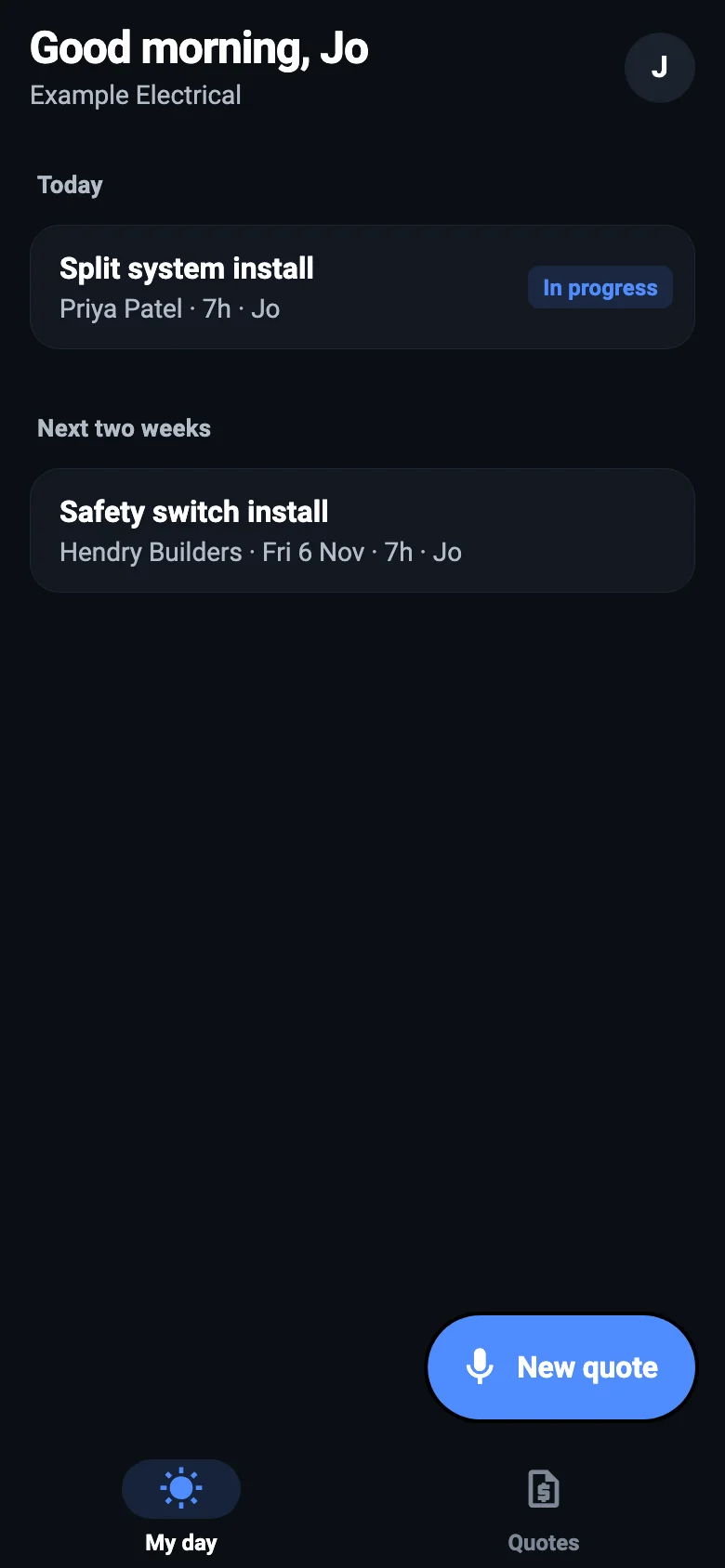
Sees their own jobs: My day and Quotes on the phone, and the job card with its time, materials and photos. They can draft quotes on site and take card payments. They don't see the business's money. The web app's for the owner and the office, so they use the phone.
Roles for your trade
Your trade pack adds its own roles, such as Licensed electrician and Apprentice. See them in Settings → Roles.
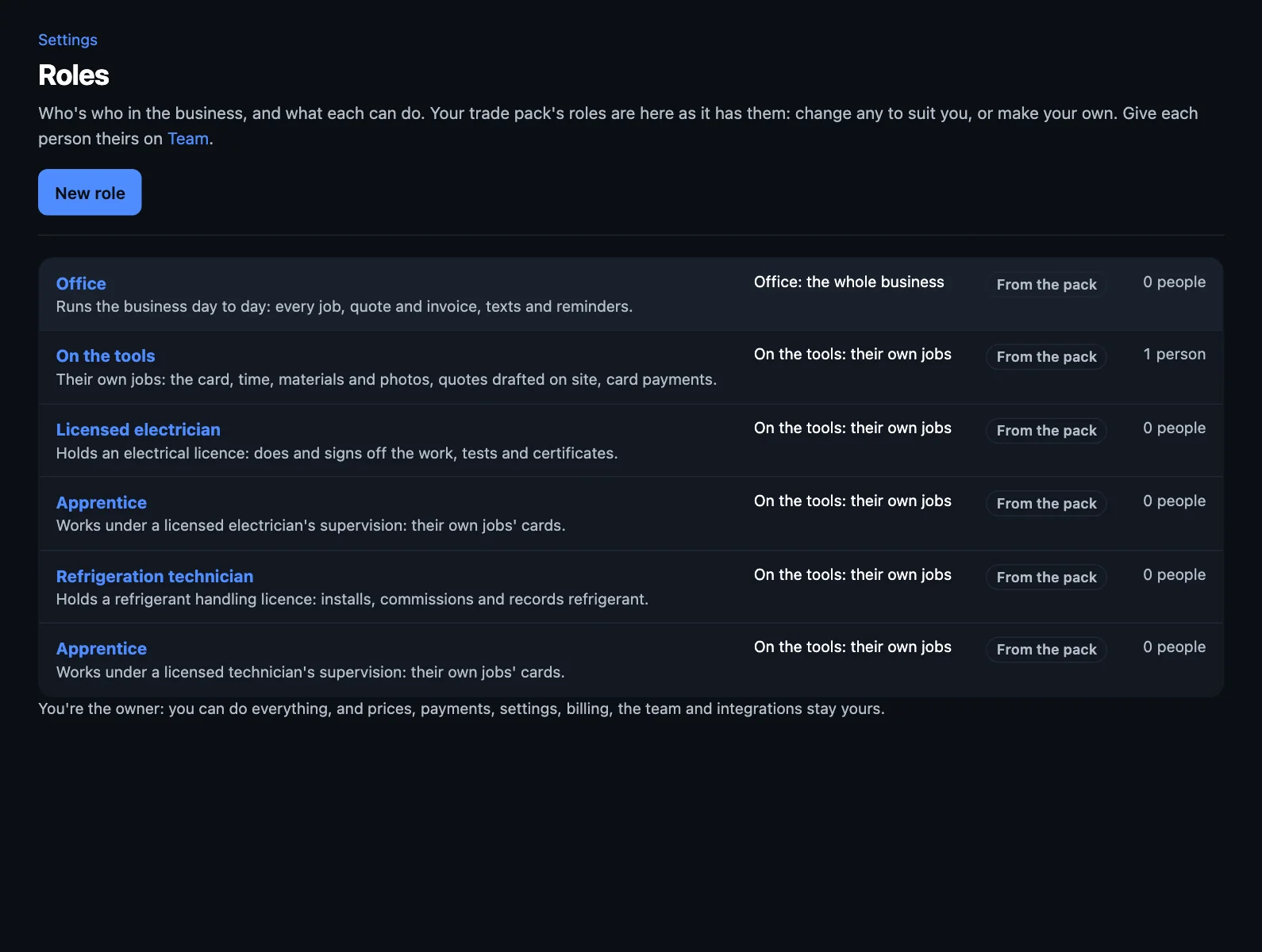
A role says what someone can do, and which job steps are theirs: a test that only a licensed electrician should tick off, for example.
- Change a role: click it and choose what it can do. Press New role to make your own.
- Give it to someone: on Team, choose it beside their name and press Change. It takes effect the next time they open TradeMate.
Two people on a job
Put two on a job and both are booked for its hours, and both see it. See Booking jobs.
Someone's left
Do this the day they go. In Settings → Team on the web, or the Team screen on the phone, take them off the team:
- Find them, and choose Take off the team.
- Confirm. Their access ends right away, on the phone and the web.
- Check Operations. Any of their jobs still to do go to whoever was helping on them. If nobody was, they show under Nobody on it, for you to give to someone.
If they were clocked on, their clock stops. Their time and the jobs they worked on stay, so your invoices and analytics are still right. They stop counting towards how full you are.
Only the owner can do this, and the owner can't be taken off.
Coming back? Invite them again with the same email. Their old time and jobs are still theirs.
NextXero, ServiceM8 and your files →