Booking jobs and the schedule
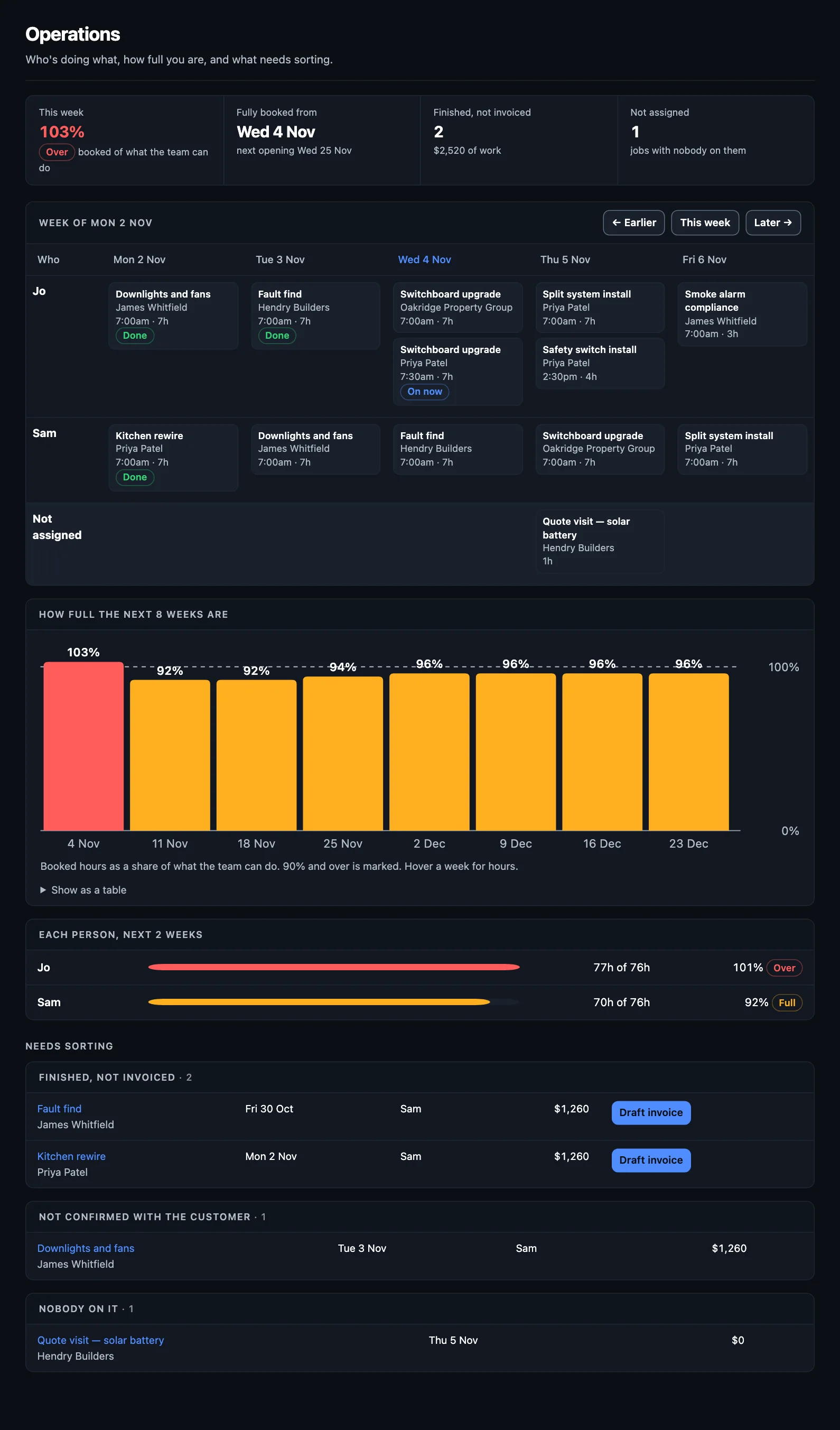
Operations is the week at a glance: who's doing what, how full you are, and what needs sorting. On the phone, it's Schedule, from Today.
Booking a job
From an accepted quote: open it in Pipeline and press Book it. The customer, price and hours come across.
By hand: + New → Job, or from a customer, Book a job. On the phone, press + then Job.
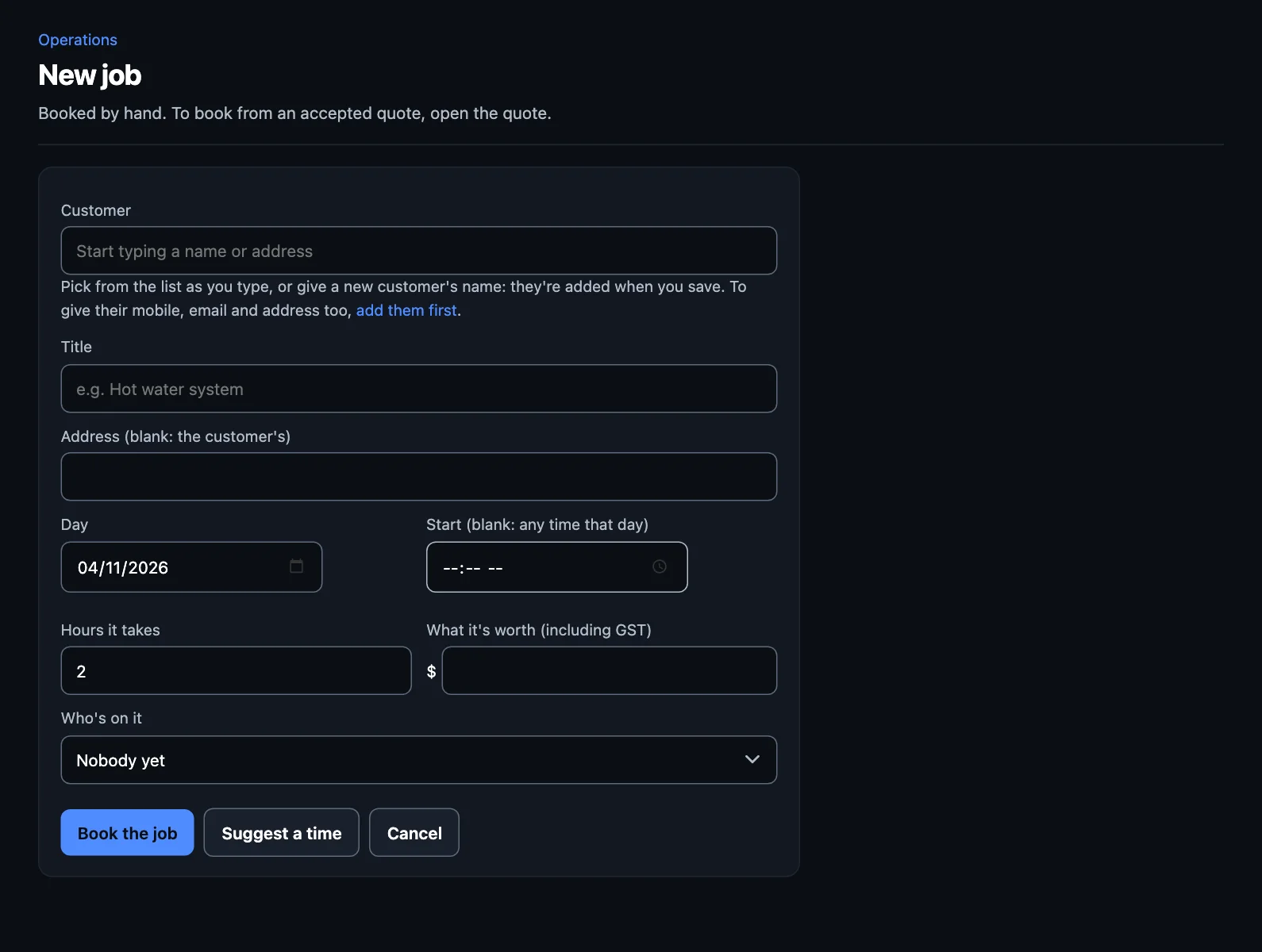
- Pick the customer, and give the job a title. The title picks the kind of job, and with it the checklist.
- Choose the day and hours. Leave the start time blank for any time that day. Not sure when? Suggest a time looks for room.
- Add what it's worth, and who's on it.
- Press Book the job. You can then text the customer the booking.
Two on a job? On the phone, open the job and add who else is on it. Everyone's booked for its hours, and the first picked leads it.
Reading Operations
- This week: booked hours as a share of what the team can do. It's marked Full from 90% and Over above 100%.
- Fully booked from and the next opening: when you run out of room, and when you've next got a full day free.
- Finished, not invoiced: money you've earned and haven't asked for.
- Not assigned: jobs with nobody on them.
- The week: each person's jobs by day. Use Earlier and Later to move around.
- How full the next 8 weeks are: your room ahead. If you're full for weeks, it may be time to raise prices or hire, and Foreman will say so.
Needs sorting
At the bottom of Operations, these need someone to look at them:
- Finished, not invoiced: press Draft invoice.
- Not confirmed with the customer: booked, but they haven't heard.
- Started but not finished: mark it done or move it.
- Nobody on it: give it to someone.
A job's page
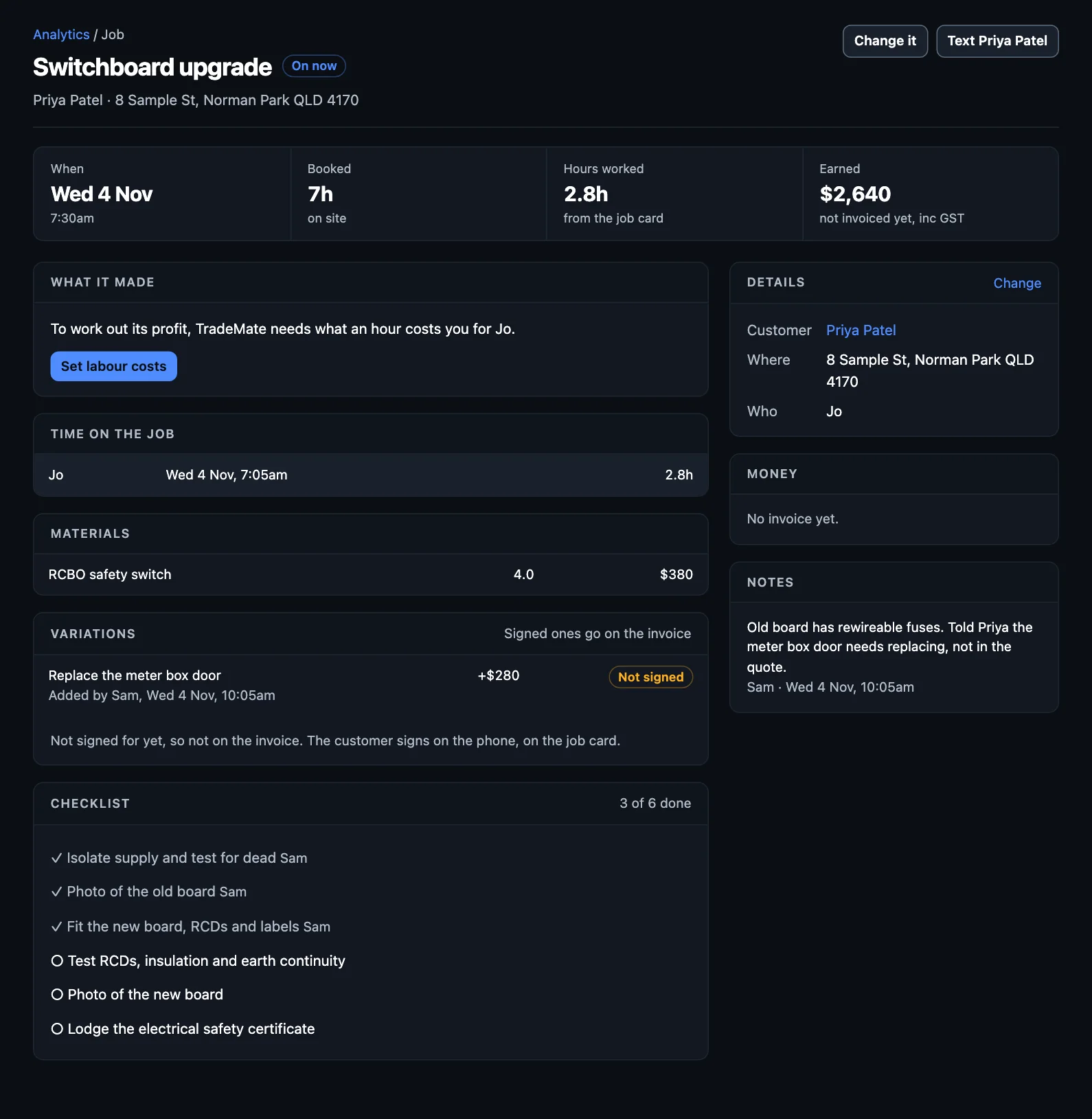
Click a job for everything about it: when it was booked for, the hours worked against the quote, what it's made, the time, materials, variations, checklist, photos, texts to the customer, and what happened. Change it moves it or changes who's on it.
Moving or cancelling a job
On the phone, open the job to move it or cancel it. It tells you how many hours it frees up and reminds you to let the customer know if the day matters to them. On the web, use Change it.
Bad weather
Turn on weather in Settings → Sending, texts and weather. For outdoor jobs Foreman checks the forecast where the job is, and suggests another day when it looks bad. TradeMate guesses what's outdoors from the job's title, using words for your trade. Got it wrong? Mark the job as indoor work on the phone.
Running late
On the phone, TradeMate can watch before a timed job and, if you won't make it, offer to text the customer in one tap. Turn on Running late in the app's Settings, and set location to "Always" for TradeMate in your phone's settings. It's set for that phone only. The text still waits for your tap.
Automatic booking texts
Confirm bookings and Remind them the day before are automations you can switch on. They're off to start with.
If you run jobs in ServiceM8
Connect it and your ServiceM8 jobs show here too, read-only. You keep booking them in ServiceM8. See Connections.
NextThe job card →