The job card
The job card is on the phone. It's where the work gets recorded: time, materials, photos, notes, the checklist and the customer's signature. What goes on it becomes the invoice.
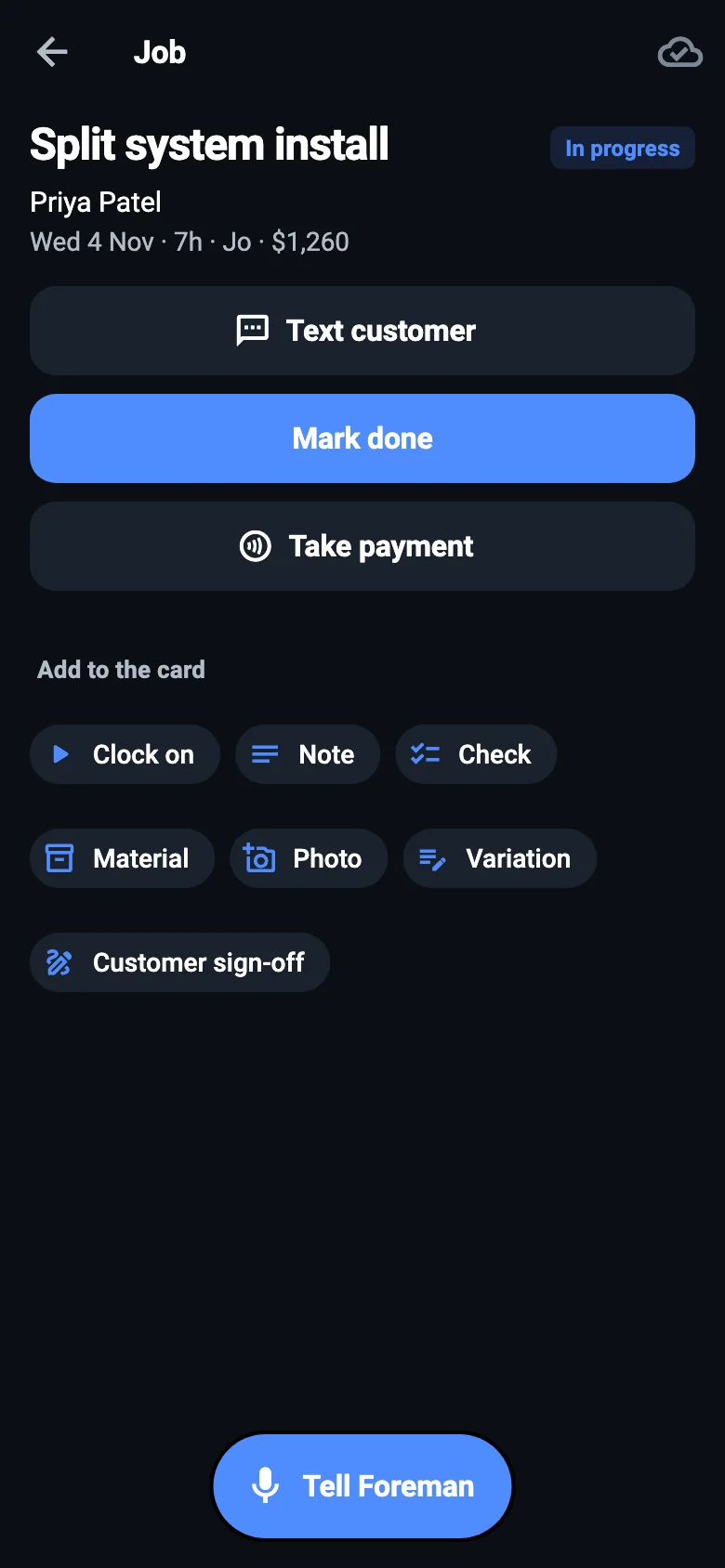
Say it: Tell Foreman
The fastest way to fill in a card. Press Tell Foreman and say what happened:
"Two and a half hours, used four RCBOs and 20 metres of cable, isolated and tested for dead, old board had rewireable fuses."
He sorts it into time, materials, checklist ticks and notes, and you check it before it goes on the card. Prices come from your price list, never from him. Ask him to move the job, and he'll set that up for you to check too.
Or add it yourself
- Clock on when you start and clock off when you stop. Forgot? Add the time afterwards. Less than a quarter of an hour in all is taken as a slip and not counted.
- Check: the job's checklist, from its kind of job. Add your own for this job. Some steps are for a certain role, such as testing by a licensed electrician: only they, the owner or the office can tick those off.
- Material: pick from your price list, or say what it is and how many. A price is optional, and leaves the invoice to ask for one.
- Photo: take one or choose one from your phone. Before and after shots are handy if a customer queries something later.
- Note: say or type it.
No signal? Keep going
The job card works with no signal. Changes save on the phone and go when you're back in range. The cloud icon at the top shows how it's going: "No signal: changes are saved on this phone", then "Everything is saved". You can even mark a job done, and it'll draft the invoice when there's signal.
Sending a text or a pay link does need signal.
Variations: extra work, agreed on site
Found something that wasn't in the quote? Agree it in writing before you do it.
- Press Variation, and say what the change is and its price. For example, "Replace the rotten joist". If it's work left out, tick Taken off the price.
- Press Get it signed and hand them your phone. They read it and sign with their finger. Or press Sign later.
- They get a copy by email, and it goes on the invoice.
Only signed variations go on the invoice. One that isn't signed yet shows "Not signed for: not on the invoice".
Customer sign-off
At the end of a job, press Customer sign-off and have them sign on the phone to say they're happy. It's kept with the job.
Texting the customer
Text customer offers ready-made texts, such as "on my way", to change or send as they are. Texts go to Australian mobiles.
Marking it done
Press Mark done. If checklist steps aren't ticked, it asks if you're sure. The invoice is drafted from the card, for the owner or the office to check and send. If you're allowed to invoice, you can do it from the card too.
Taking payment on the spot
Press Take payment. The amount comes from the job's invoice, and you can change it.
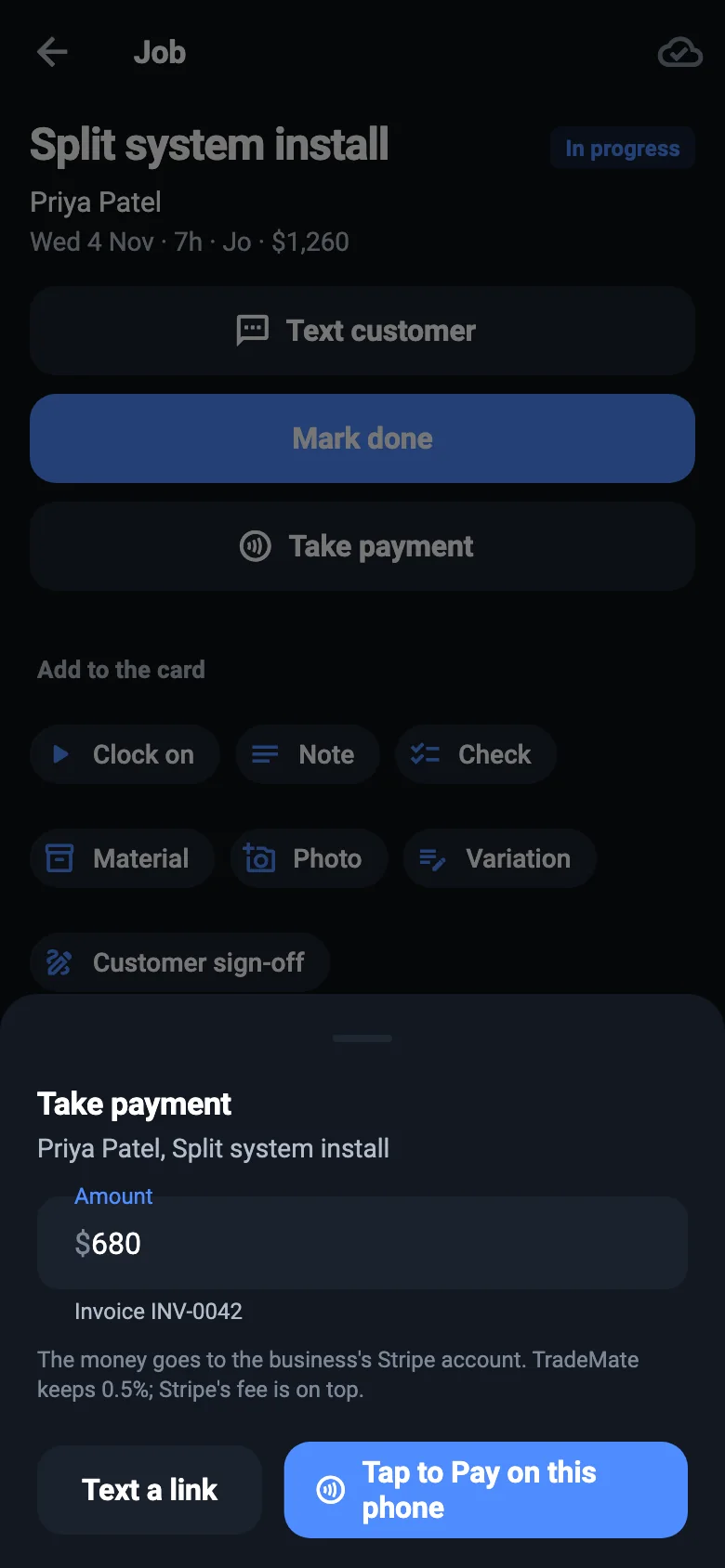
- Tap to Pay on this phone: they tap their card or phone on yours. No separate reader.
- Text a link: they pay by card on their own phone.
The owner connects card payments first, once, in Settings.
Directions
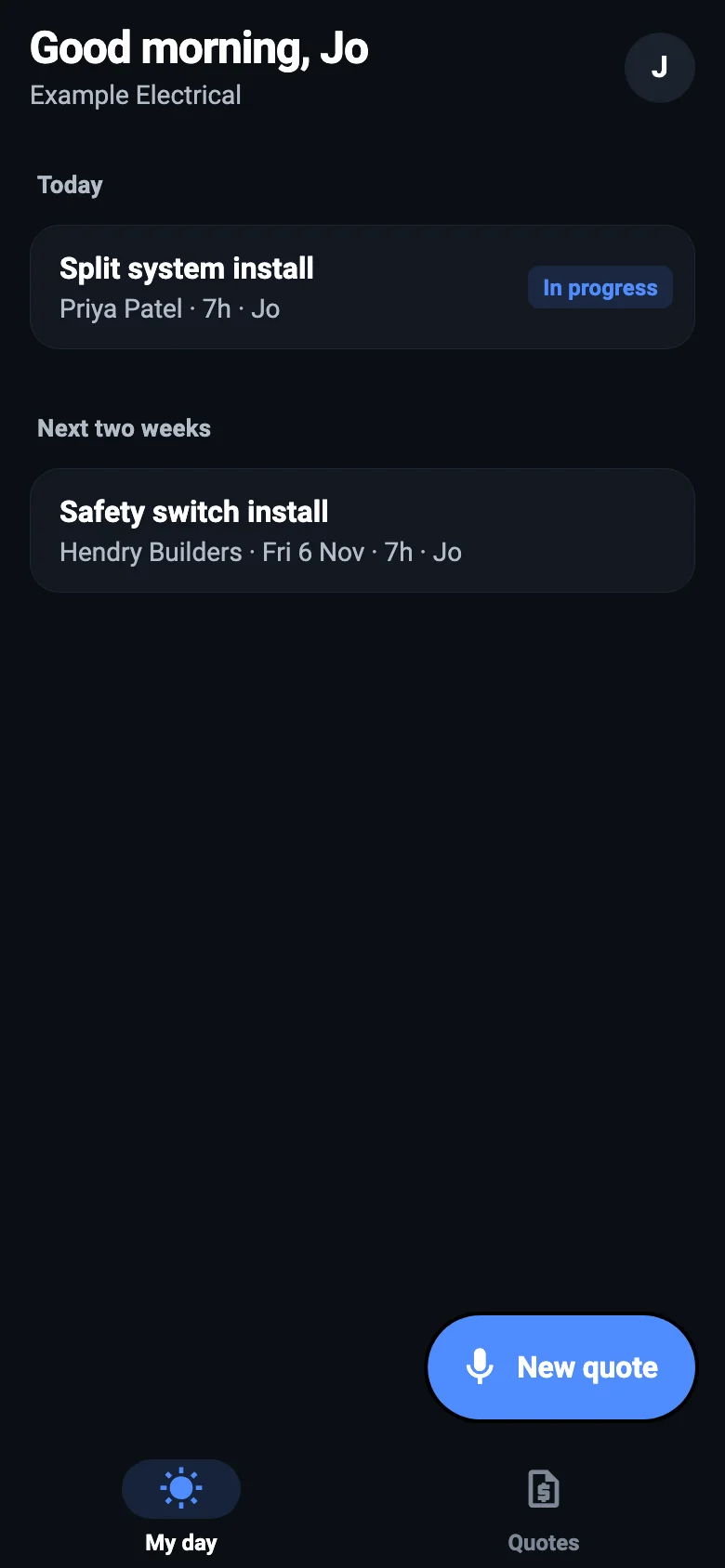
On My day and on Today, the arrow beside a job opens directions in your maps app.
NextInvoices and getting paid →