Signing in and your login
You sign in with your email, your password, and a 6-digit code from an app on your phone. The same login works on the phone app and the web.
Signing in
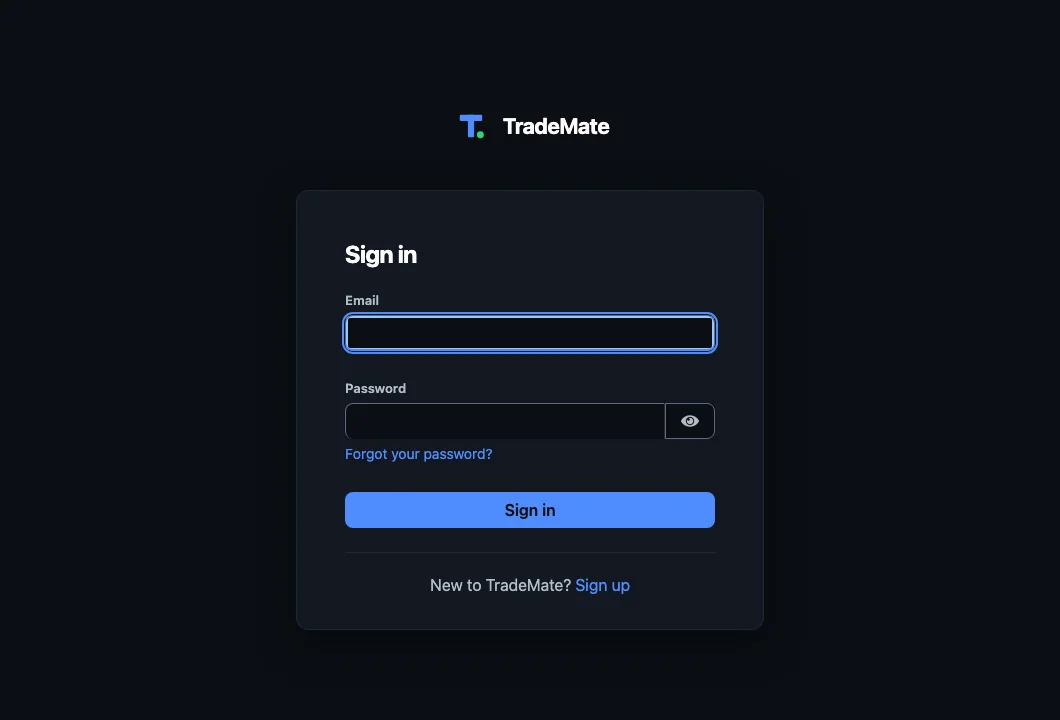
- Enter your email and password, and press Sign in.
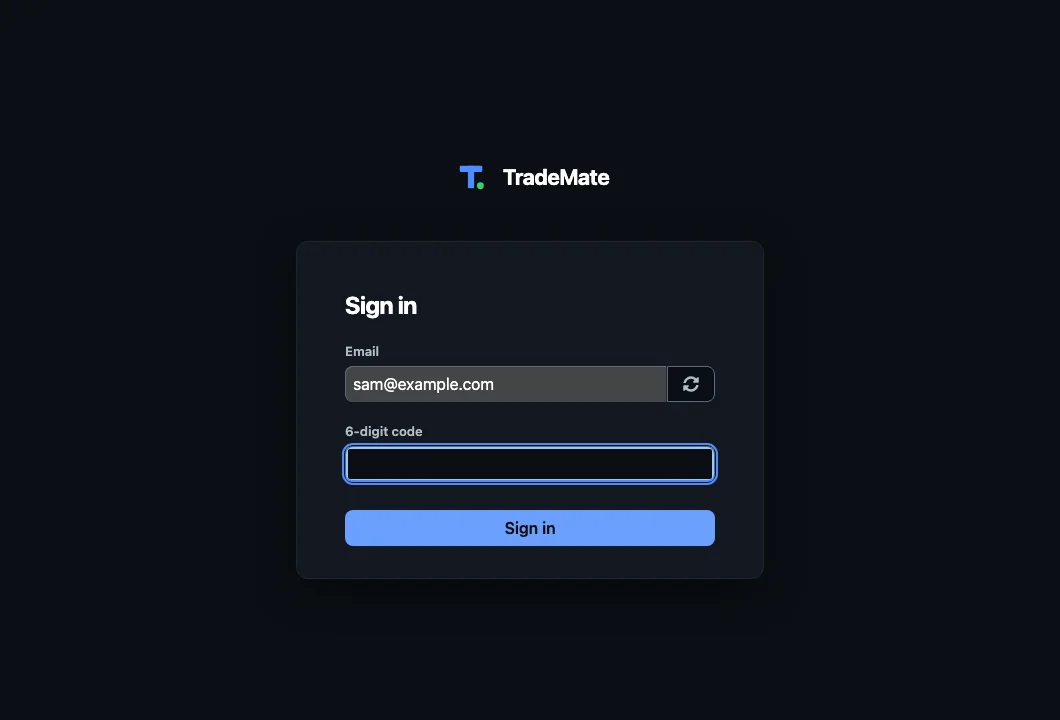
- Open your authenticator app, and type the 6-digit code it shows for TradeMate. The code changes every 30 seconds, so use the one showing now.
Why the 6-digit code?
Your login can see your customers' details, your invoices and your bank balance. A password alone can be guessed or stolen. With the code, someone would need your phone as well. Everyone signing in to a business on TradeMate sets one up.
If your login was made before codes came in, or you've removed yours, you'll be asked to set one up the next time you sign in. Getting started shows how.
Forgotten your password?
- On the sign-in page, press Forgot your password?.
- Enter your email. We'll send you a link, which works for 30 minutes.
- Open it and choose a new password.
Your confirmation link expired
A new login has no password until its email is confirmed and its code is set up. The confirmation link lasts 24 hours. If it runs out, signing up again won't work, because the email's already taken. Use Forgot your password? on the sign-in page instead: it gets you going again, and a new confirmation email is on its way.
A new phone, or a lost one
Getting a new phone? Many authenticator apps can move your codes across: Google Authenticator and Microsoft Authenticator both have a transfer or backup option, and 1Password keeps them in your vault. Do it before you wipe the old phone.
Lost it, or the codes are gone? You can't reset the code yourself. Email support@dev.camlester.com from your login's address. Once we've checked it's you, we'll clear the old code and you'll set up a new one at your next sign-in. Your business's data isn't touched.
Face ID on the phone
You don't want to type a code every time you open the app in the van. Turn on Unlock with Face ID in the app's Settings, and you open TradeMate with your face (or your phone's fingerprint or passcode) instead of signing in each time. It's set for that phone only.
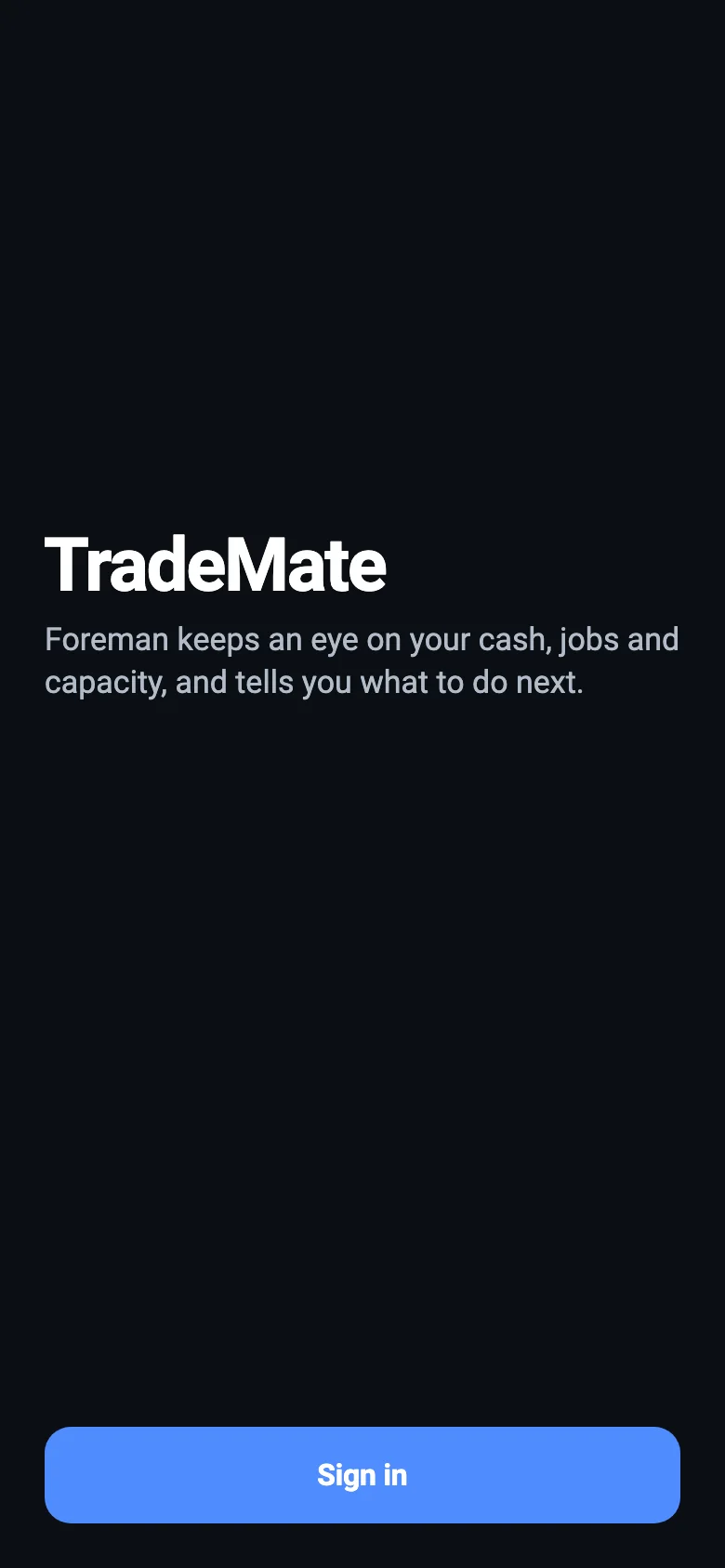
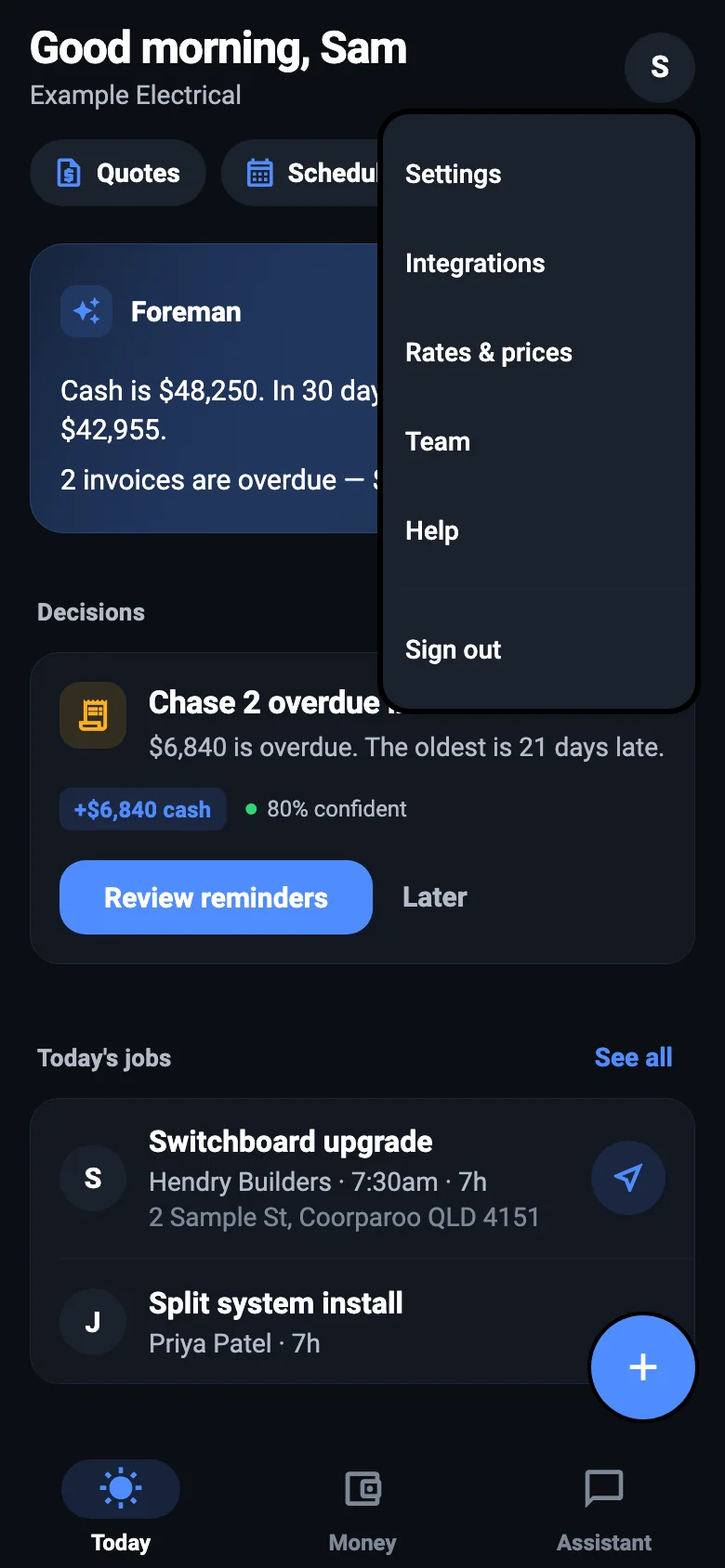
On the phone, your settings, Help and signing out are in the menu behind your initial, at the top of Today.
Paying a bill from the app always asks for a fresh check, even if the app's already unlocked.
Staying signed in on the web
The web app signs you out after an hour without using it, to keep the business safe. It warns you 5 minutes before, with a button to stay signed in. Anything you haven't saved would be lost, so save as you go on a long form. You'll also need to sign in again after 12 hours.
In more than one business?
If your login belongs to more than one business, the web app asks you to choose one after signing in. Use Switch under the business's name to change.
NextToday and Business Health →