Set up your business
You can start quoting straight away, but half an hour here makes everything after it right. It's all under Settings in the web app.
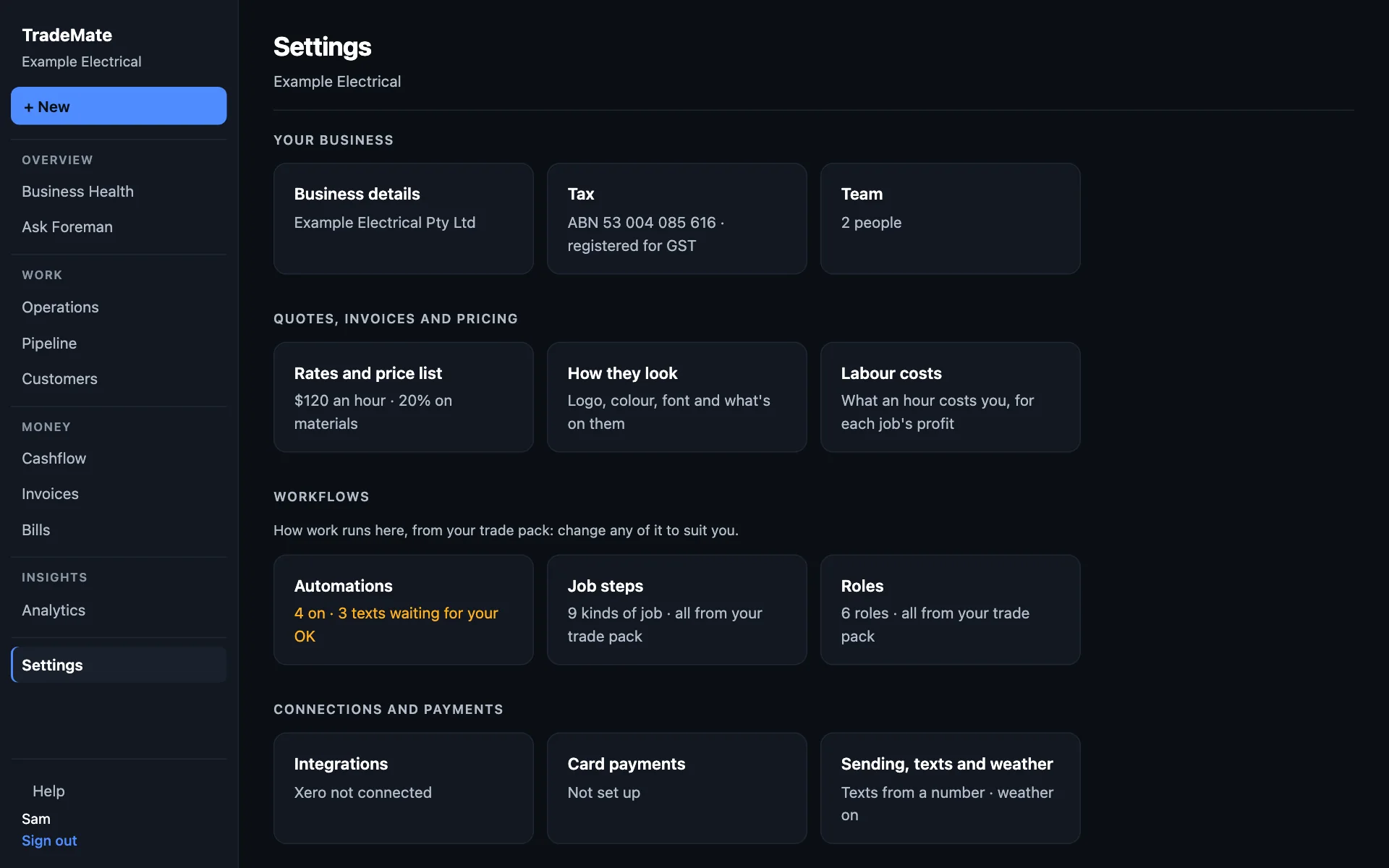
Do these first
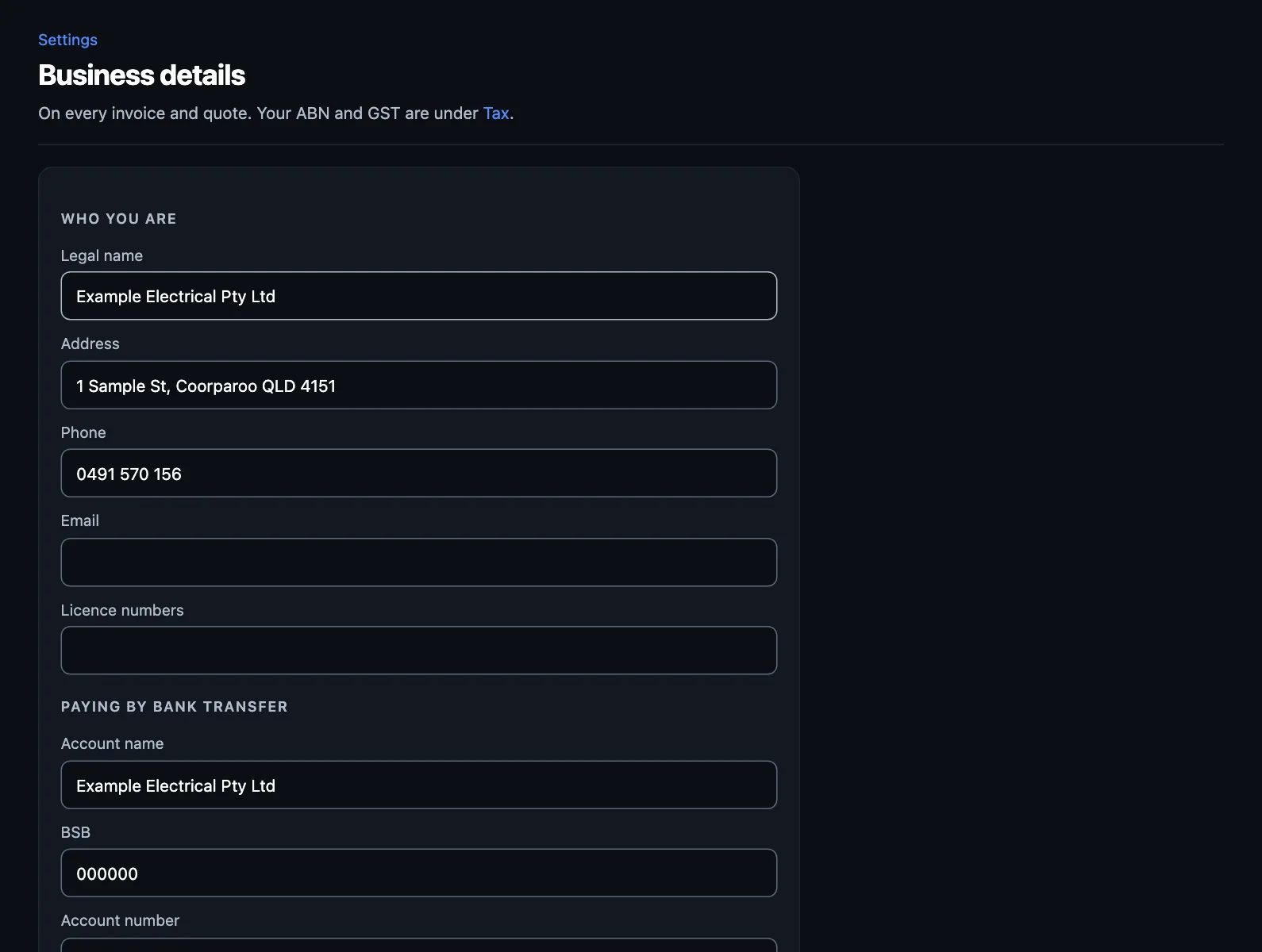
Your business details
Settings → Business details. Your legal name, address and phone go on every quote and invoice. Add your bank details so customers can pay by transfer, your payment terms in days, and how your invoice numbers start. If you're moving across, set the next number to carry on from your old system.
Your ABN and GST
Settings → Tax. A tax invoice can't be sent without your ABN, so add this before your first invoice. Choose whether you're registered for GST, whether you account on cash or accruals, and whether you lodge BAS quarterly or monthly. Foreman uses this for what to set aside.
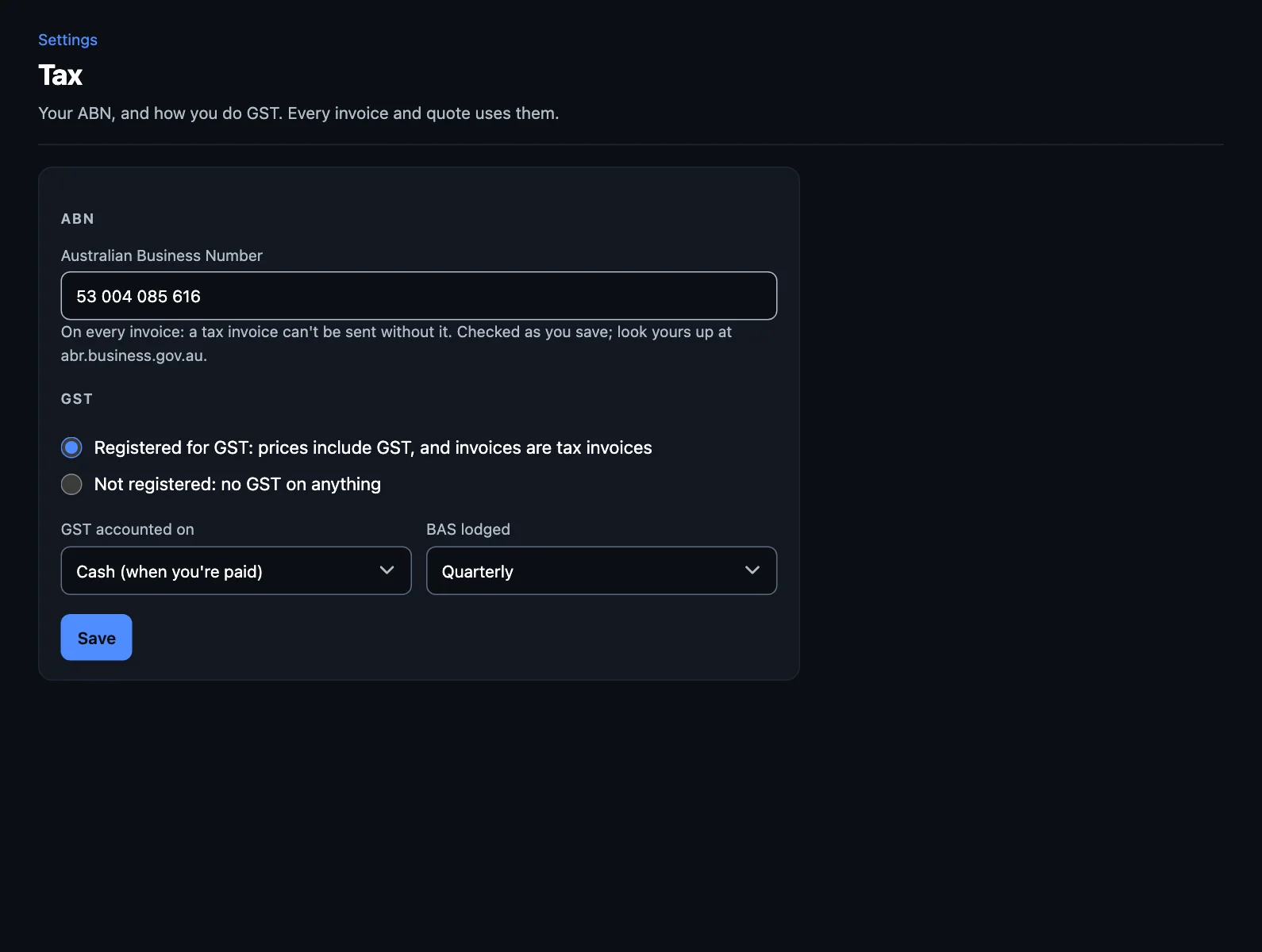
If Xero's connected, your ABN and GST come across from there and you change them in Xero.
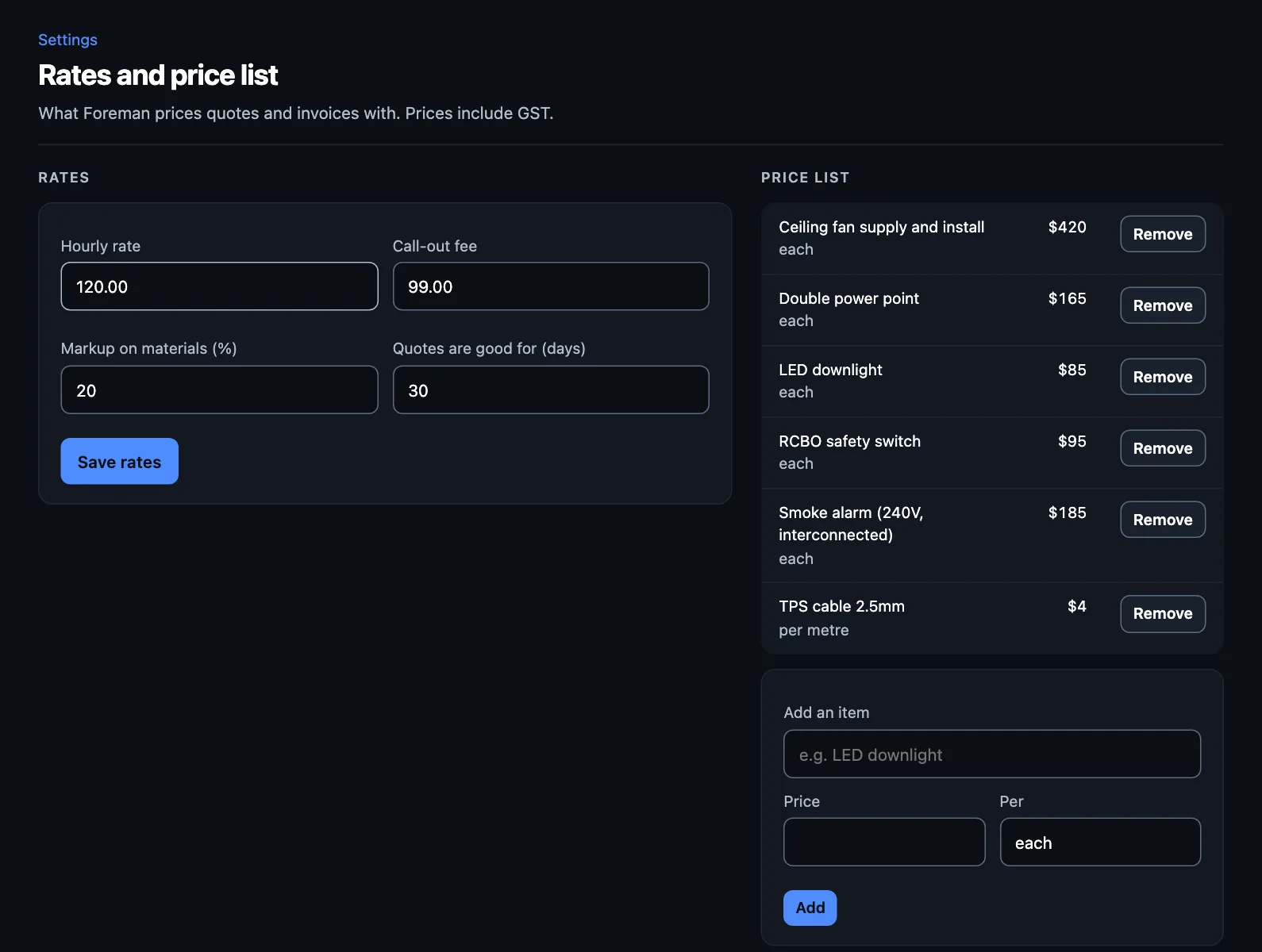
Your rates and price list
Settings → Rates and price list. This is what Foreman prices with, so it's the one to get right. You'll see your trade's typical starting figures: check them and press Save rates.
- Hourly rate and call-out fee, including GST.
- Markup on materials and how many days a quote is good for.
- Price list: the things you fit often, with a price each or per metre. The more you add, the less you'll price by hand.
How your quotes and invoices look
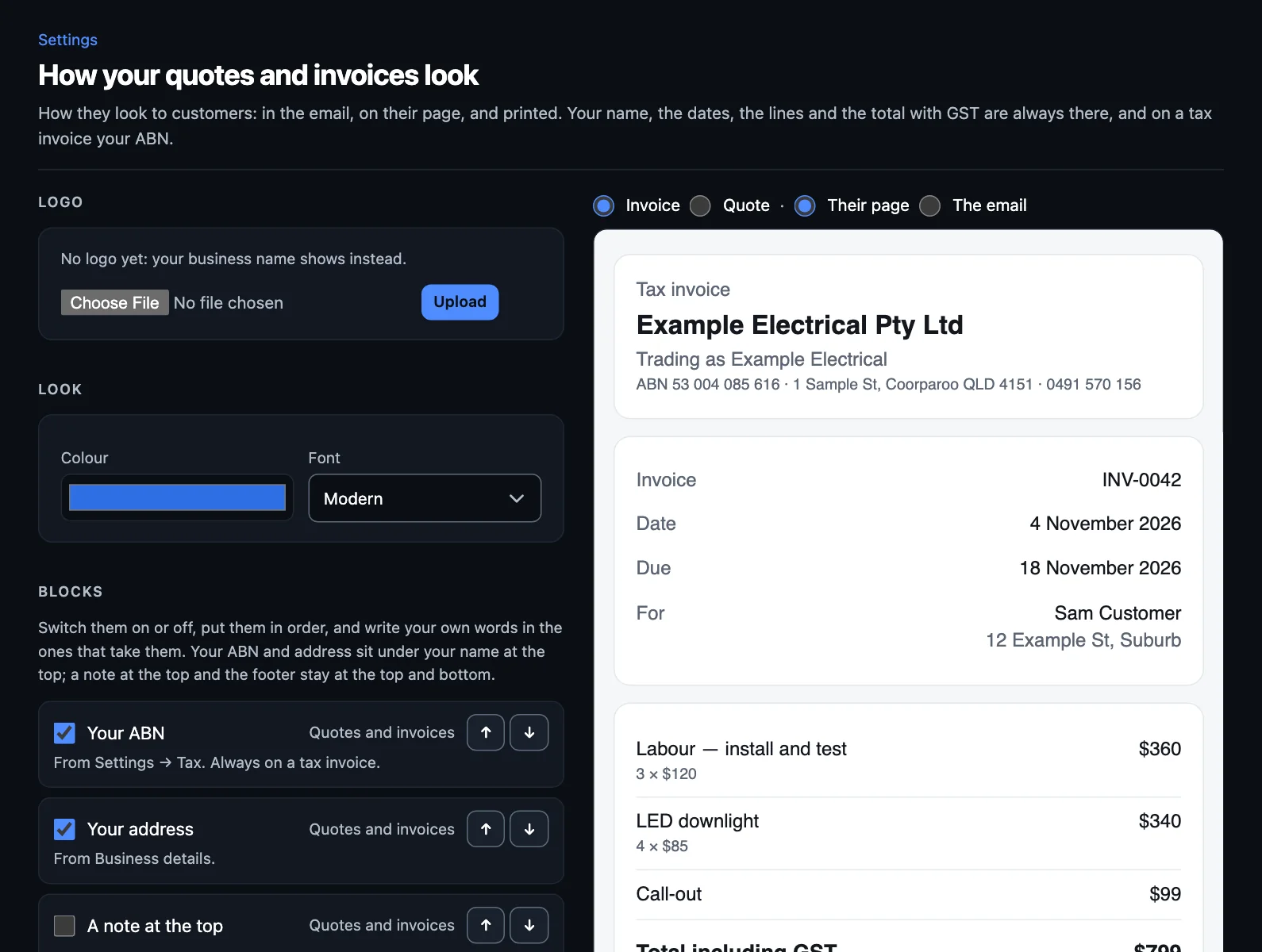
Settings → How they look. Upload your logo (a PNG or JPEG under 500 KB), pick a colour and font, and switch blocks on or off, such as a note at the top or a footer. The preview changes as you go, and you can see it as an invoice or quote, on their page or as the email. Nothing changes for customers until you save.
Do these when you're ready
- Add your team. Invite people by email and give each a role.
- Connect Xero or ServiceM8. Then Foreman's first briefing has your real numbers in it.
- Labour costs. Tell TradeMate what an hour of each person costs you, and each job shows its profit in Analytics.
- Automations. Some are on already, such as chasing late payers. Have a look at what's there.
- Card payments. Connect your Stripe account to tap cards and text pay links.
Job steps
Each kind of job comes with a checklist for your trade. Read through them and change them to how you work: see Job steps and checklists.
Sending, texts and weather
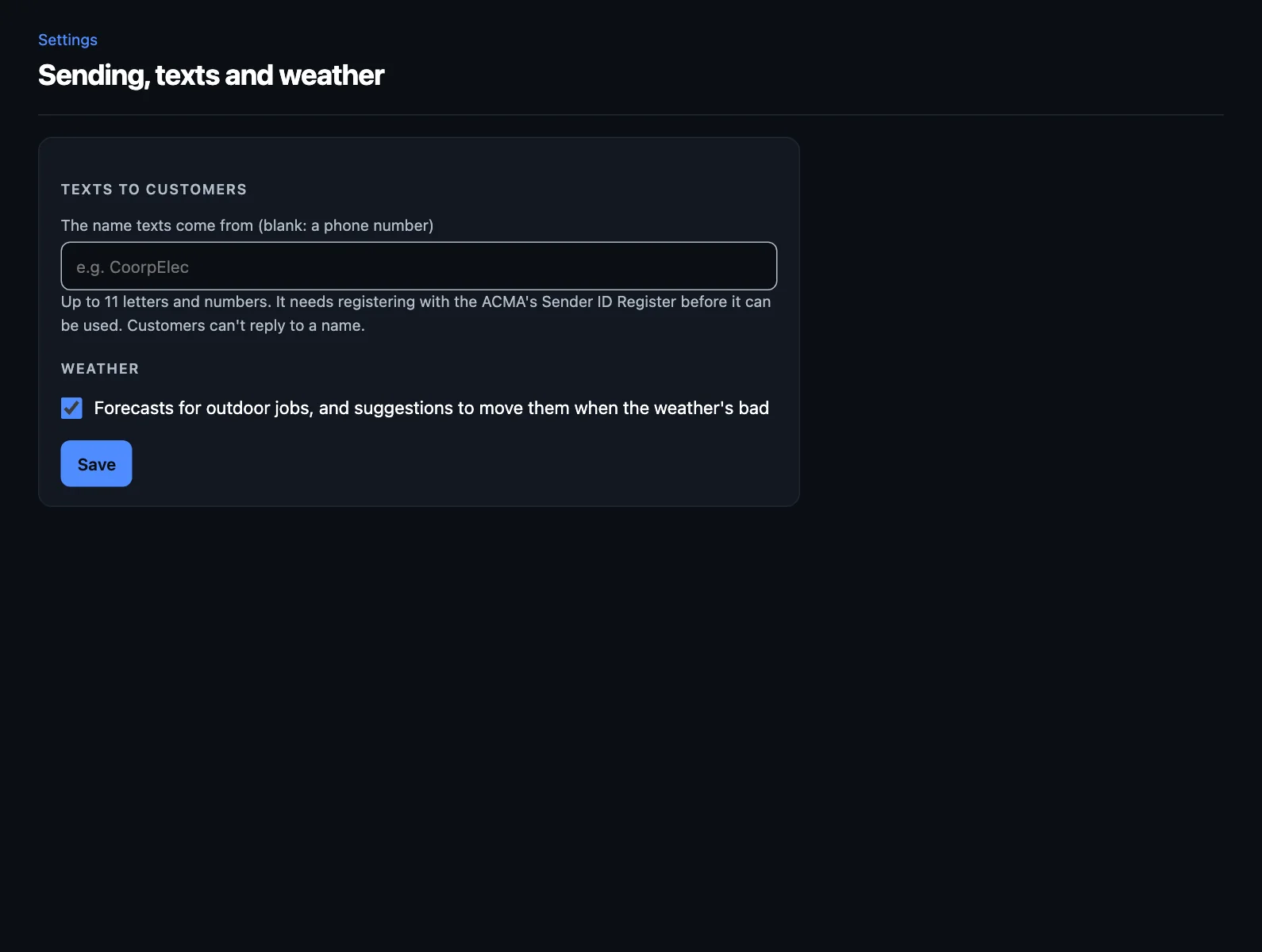
Settings → Sending, texts and weather has three choices worth knowing about:
- Who emails your quotes, invoices and reminders. By default TradeMate emails them, with its own PDF and a link to accept or pay, and Xero keeps a copy. If you'd rather, Xero can send them with its template. Texts always go from TradeMate.
- The name texts come from. Leave it blank to send from a number. A name of up to 11 letters and numbers has to be registered on the ACMA's Sender ID Register first, and customers can't reply to a name.
- Weather. Forecasts for outdoor jobs, and suggestions to move them when it looks bad.
Your first week
- Send one real quote. Speak it, check the draft, and notice what you'd change. Fix your rates or price list so next time's right.
- Book a job and run its card. See how the checklist fits. Change the job's steps if it doesn't.
- Invoice it. Mark it done, check the draft and send it.
- Read Foreman's briefing each morning. Act on a decision or two. It gets more useful the more of your work is in TradeMate.