Quotes
Say the job. Foreman drafts it from your own rates and price list. You check it and send it, and the customer accepts on their phone.
Speak a quote on the phone
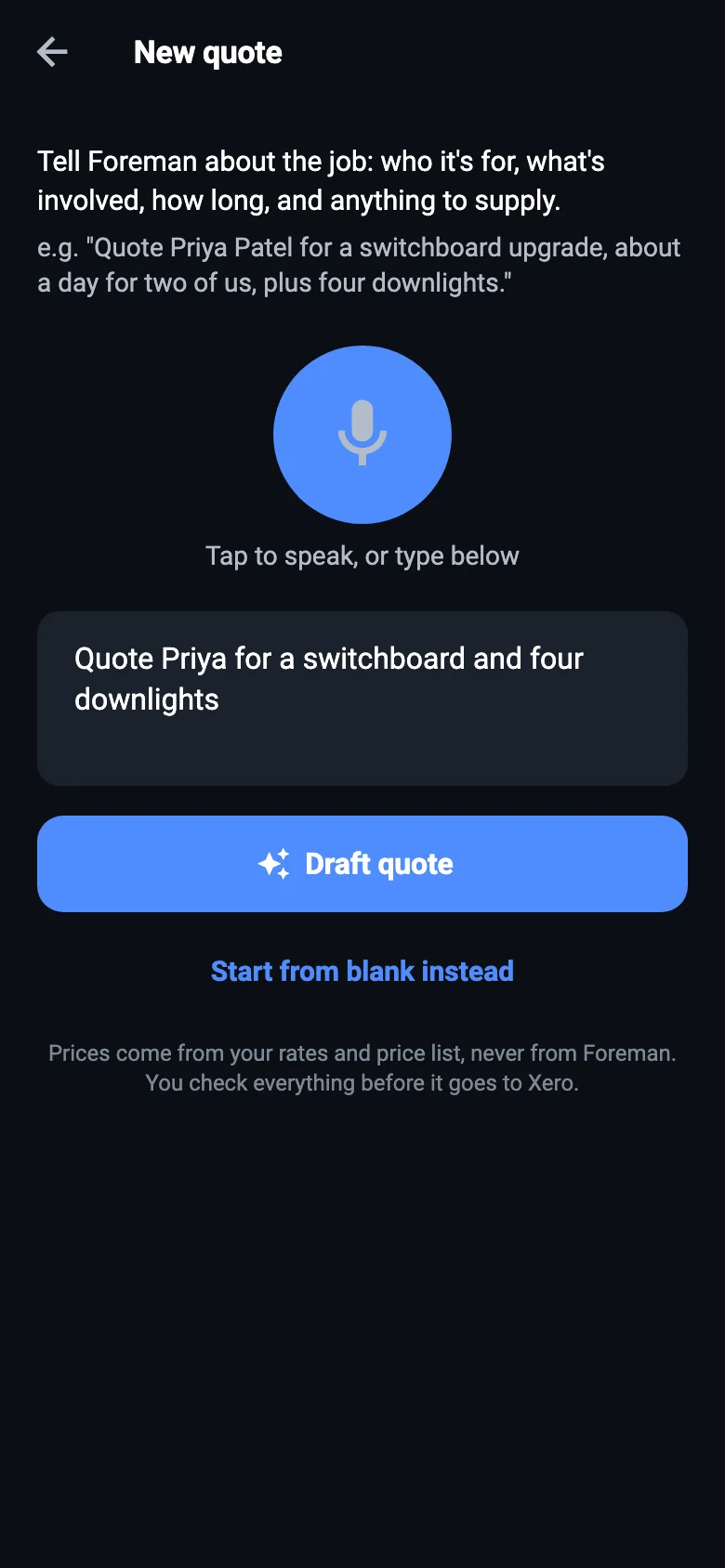
- Press +, then Quote. Team members have a New quote button.
- Say who it's for, where, what's involved, how long, and anything to supply.
"Quote Priya Patel for a switchboard upgrade, about a day for two of us, plus four downlights."
- Check what it heard, and press Draft quote.
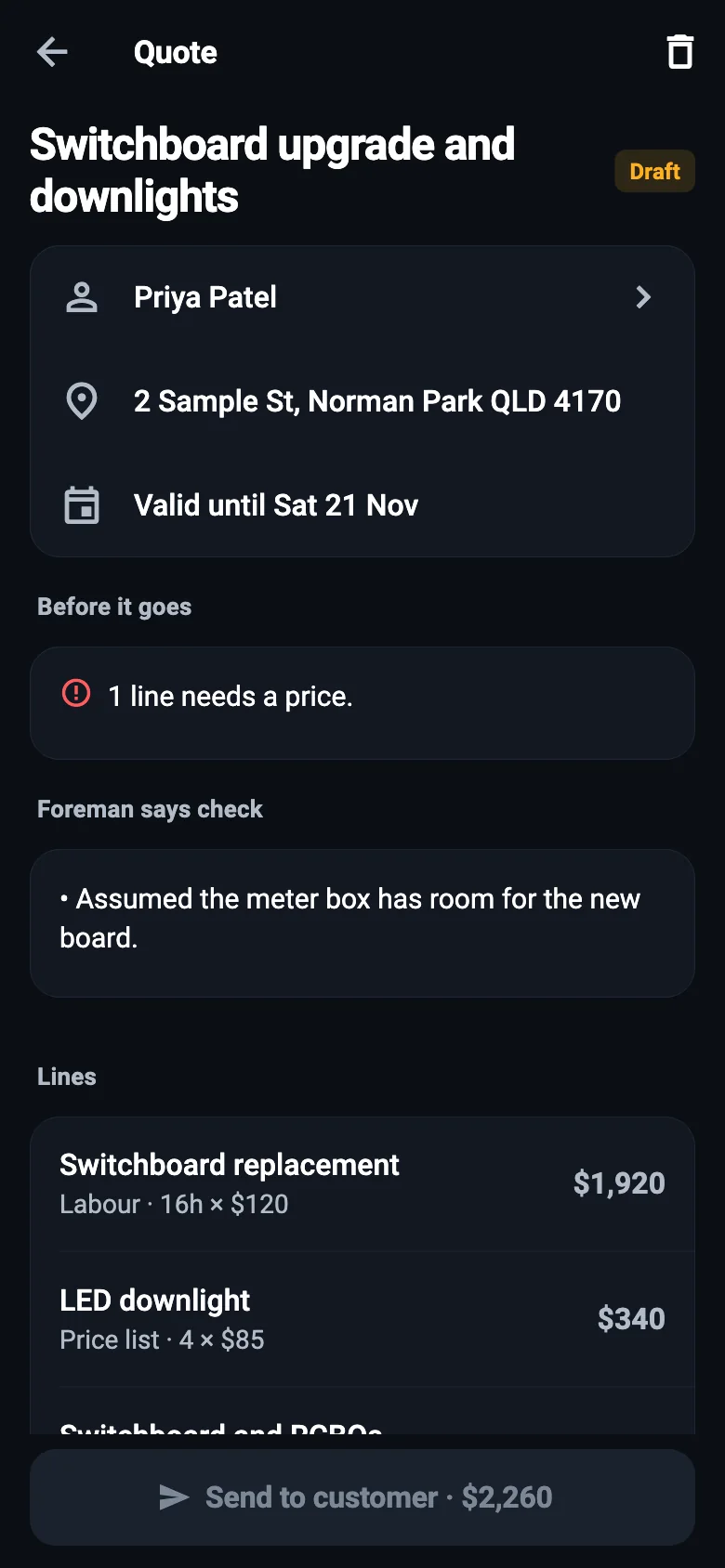
- Check the draft. Tap a line to change it, or to price what Foreman couldn't.
- Press Send to customer.
Or at a computer
+ New → Quote, or Pipeline → New quote. Describe the job in Have Foreman draft it and press Draft it, or fill it in yourself below.
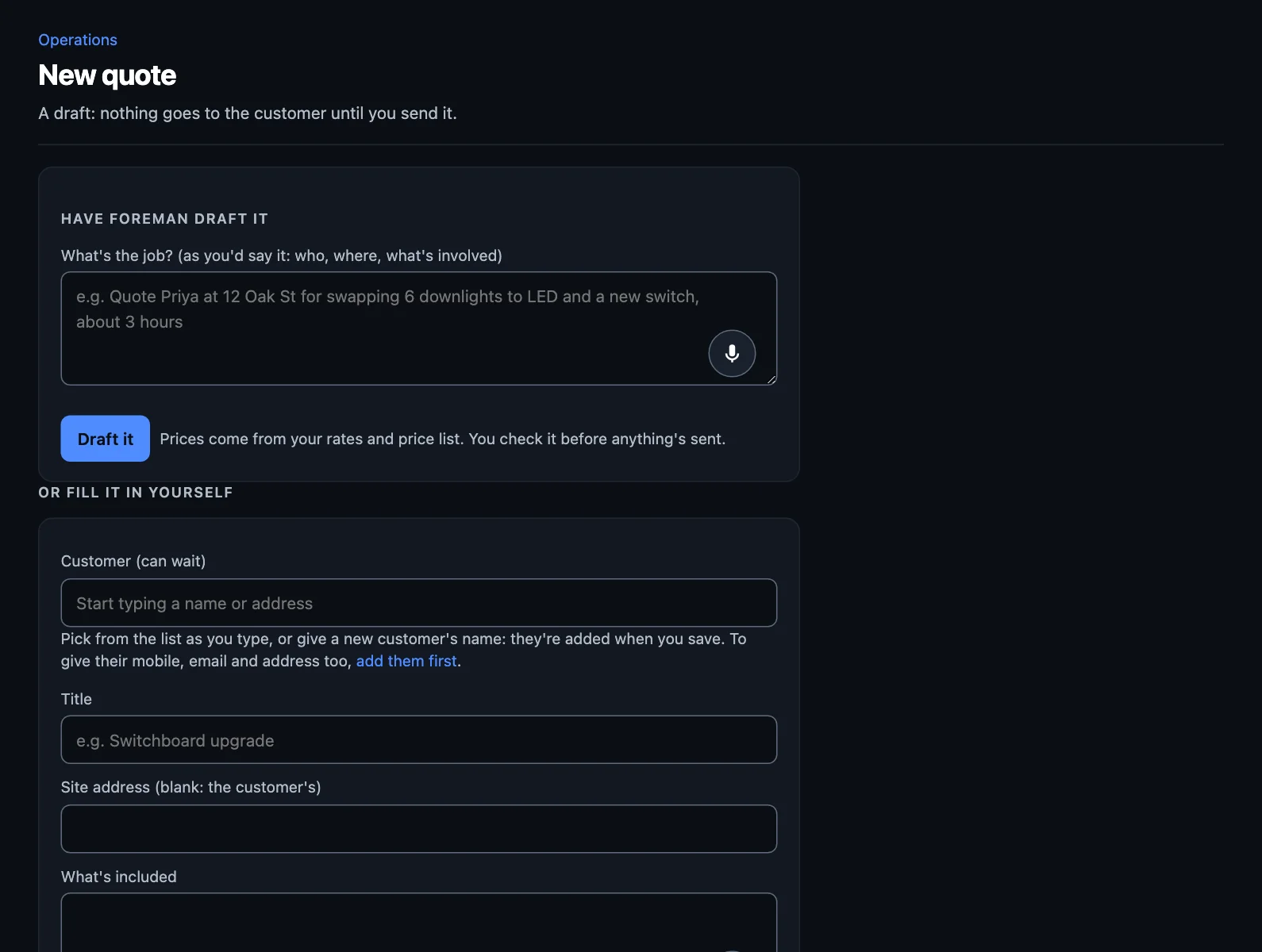
Leave a price blank and it comes from your rates or price list. Materials that aren't on your price list need a price.
Before it can go
The draft tells you what's stopping it going, such as a line with no price, or your ABN missing from Settings → Tax. Fix those and Send it opens up.
Sending it
Choose text, email or both. The page starts on how that customer likes to hear from you.
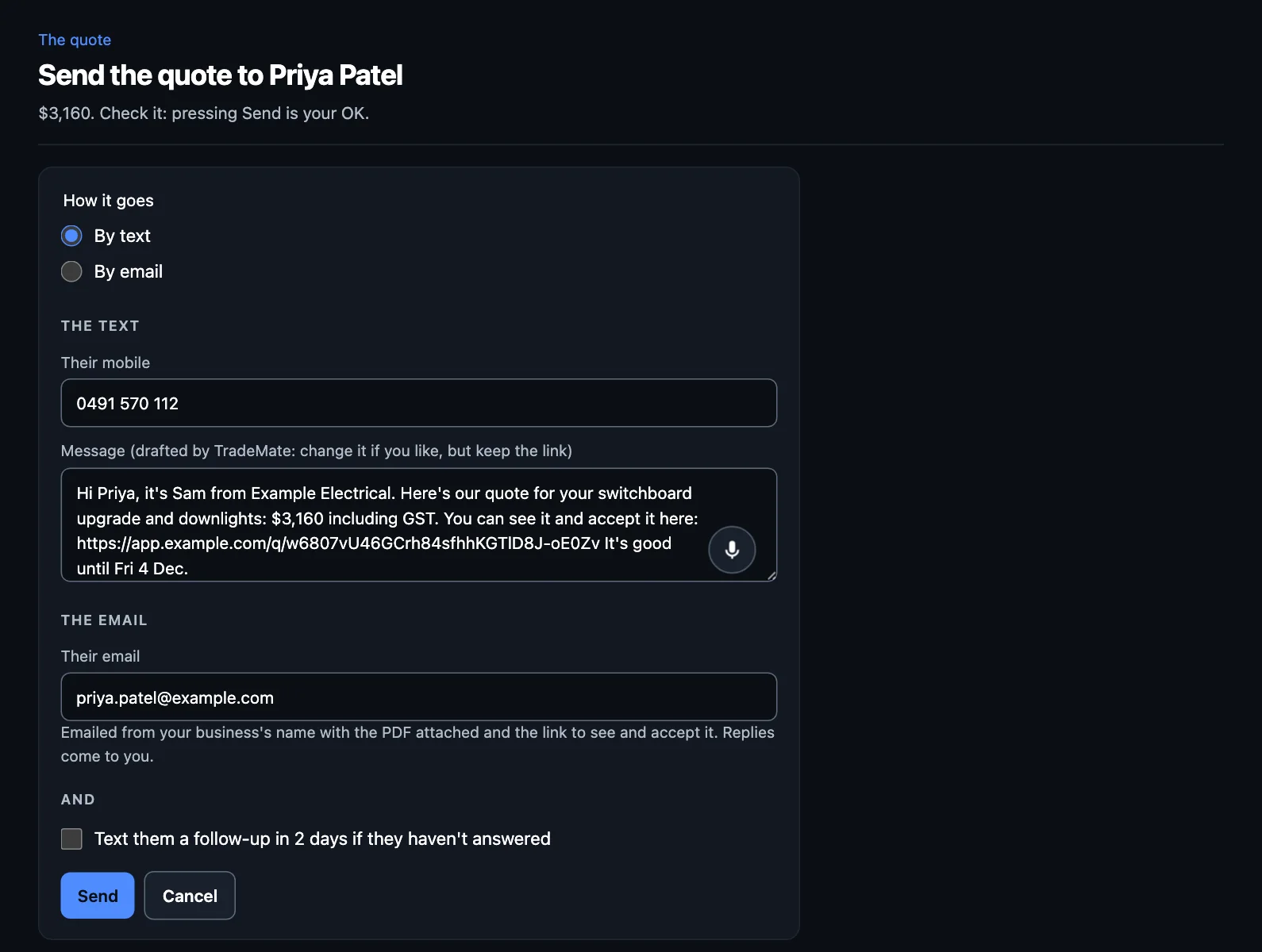
- The text is drafted for you. Change it if you like, but keep the link.
- The email goes from your business's name with the PDF attached and the link. Replies come to you.
- The follow-up: tick this and a text goes in a couple of days if they haven't answered, without asking you again.
Pressing Send is your OK. The quote gets its number and date as it goes.
What the customer sees
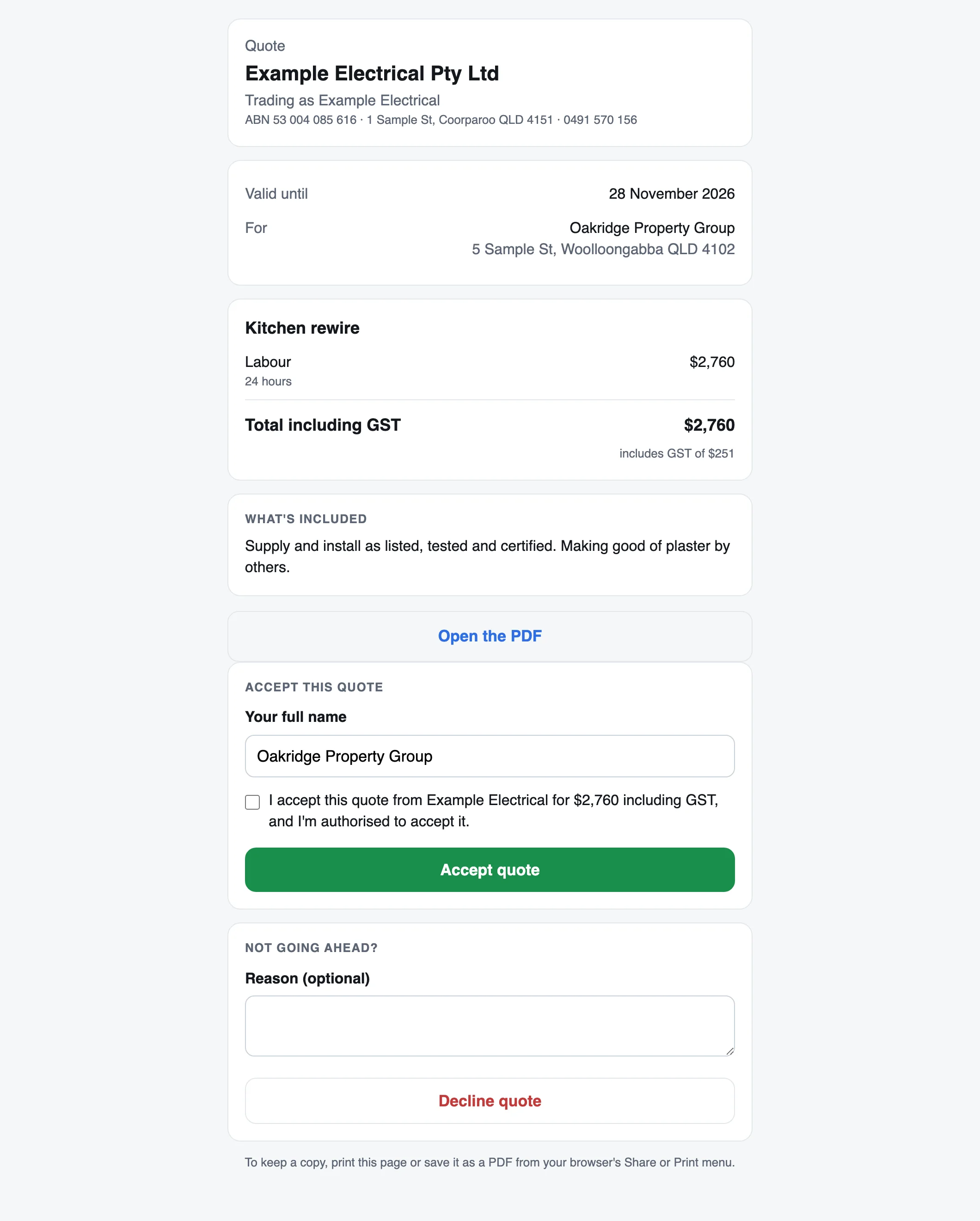
A page with your details, the lines, the total including GST, and when it's good until. They can download a PDF, accept it by typing their name, or decline it and say why.
Following up
Pipeline lists the quotes Waiting on an answer, how long since each was sent, and your win rate. Press Follow up beside one to text them.
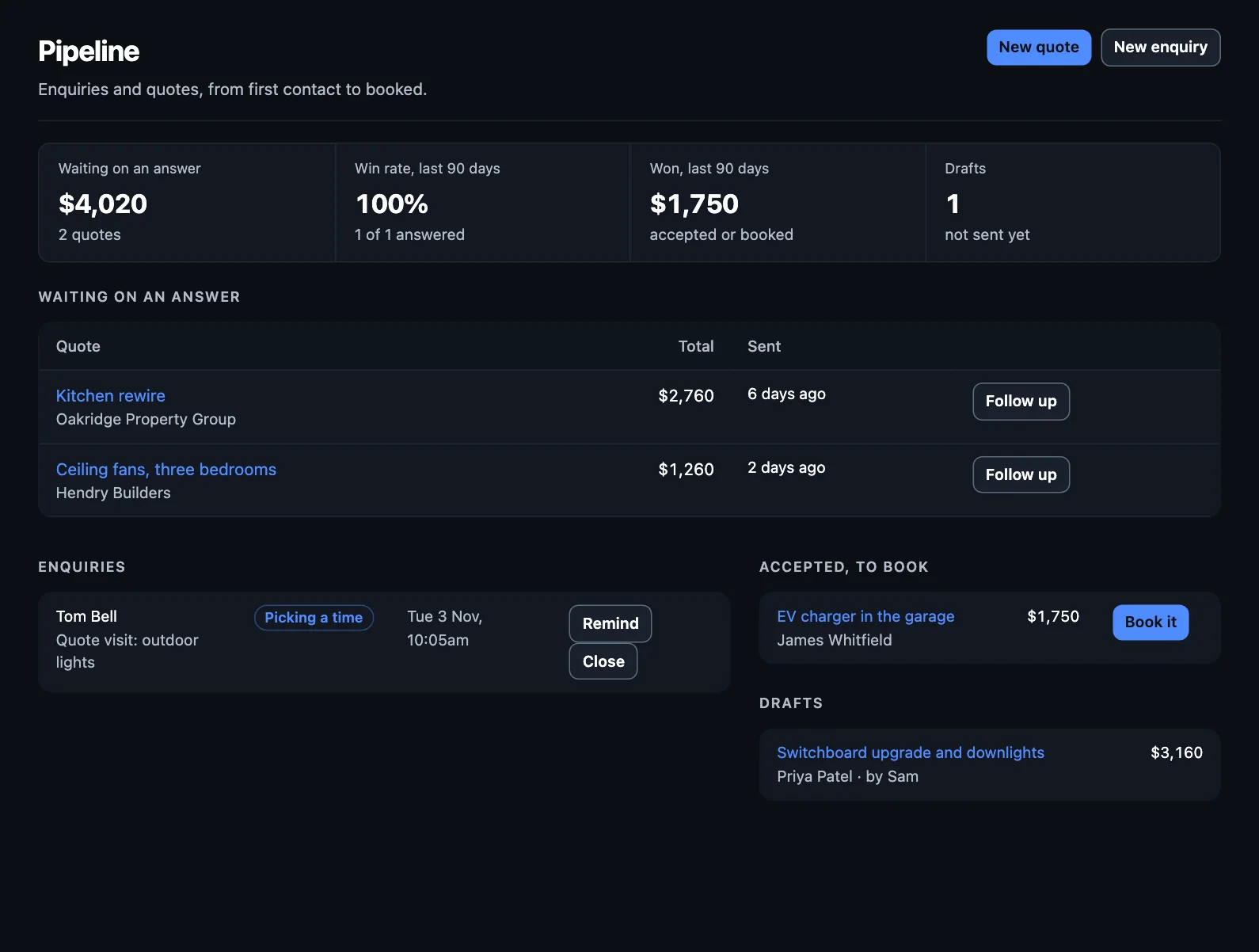
The Follow up quotes automation is on from the start. Two days on with no answer, it writes a short text for your OK, then later tells you it's worth a call. It stops as soon as they answer. See Automations.
When they accept
The quote moves to Accepted, to book. Press Book it or, on the quote, Book the job.
Splitting a big job
On the quote, press Split into separate jobs. Split by stage with a percentage for each (rough-in, fit-off), or by its lines. Each part is booked, done and invoiced on its own, at its share of the quote, and the parts always add up to the total.
A team member's quotes
Someone on the tools can draft a quote on site, but they can't send it. They ask for it to be sent, and it waits under Drafts in Pipeline, marked "Asked to send", for you or the office to check. You can change that in Roles.
Changing or binning one
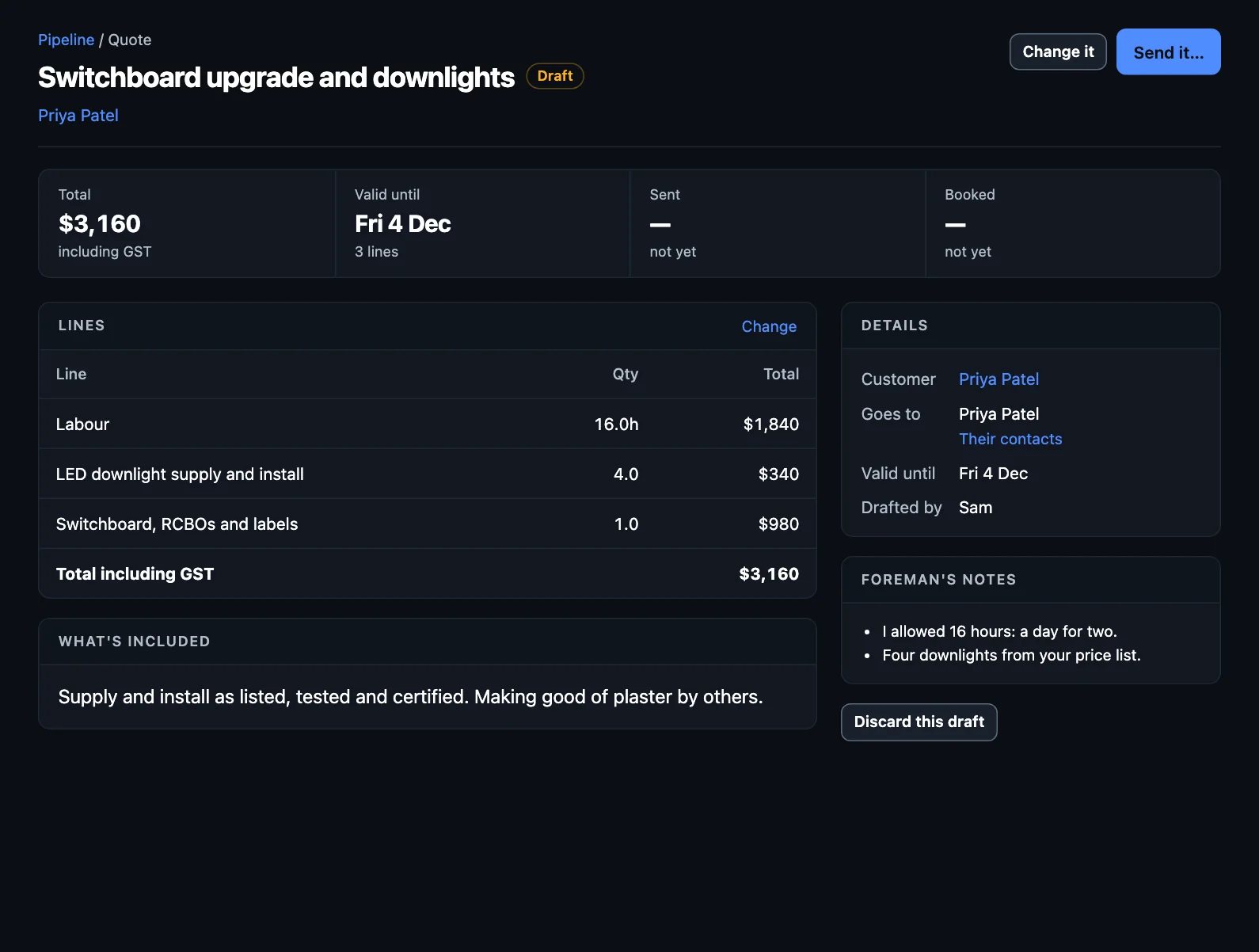
Use Change it on a draft, or Discard this draft to get rid of it.
NextBooking jobs and the schedule →