A job from enquiry to paid
Here's one job, all the way through: a customer gets in touch, you quote, you do the work, you get paid. You'll see each screen as it happens. The business and the customers in these pictures are made up.
The rule through all of it: nothing goes to a customer, and no money moves, until you've checked it and said yes. Prices come from your rates and price list, never from a guess.
1. A customer gets in touch
Tom Bell rings about outdoor lights while you're on a job. You don't have to find a time then and there. Press + on your phone and just say it:
"New enquiry from Tom Bell, 0491 570 114."
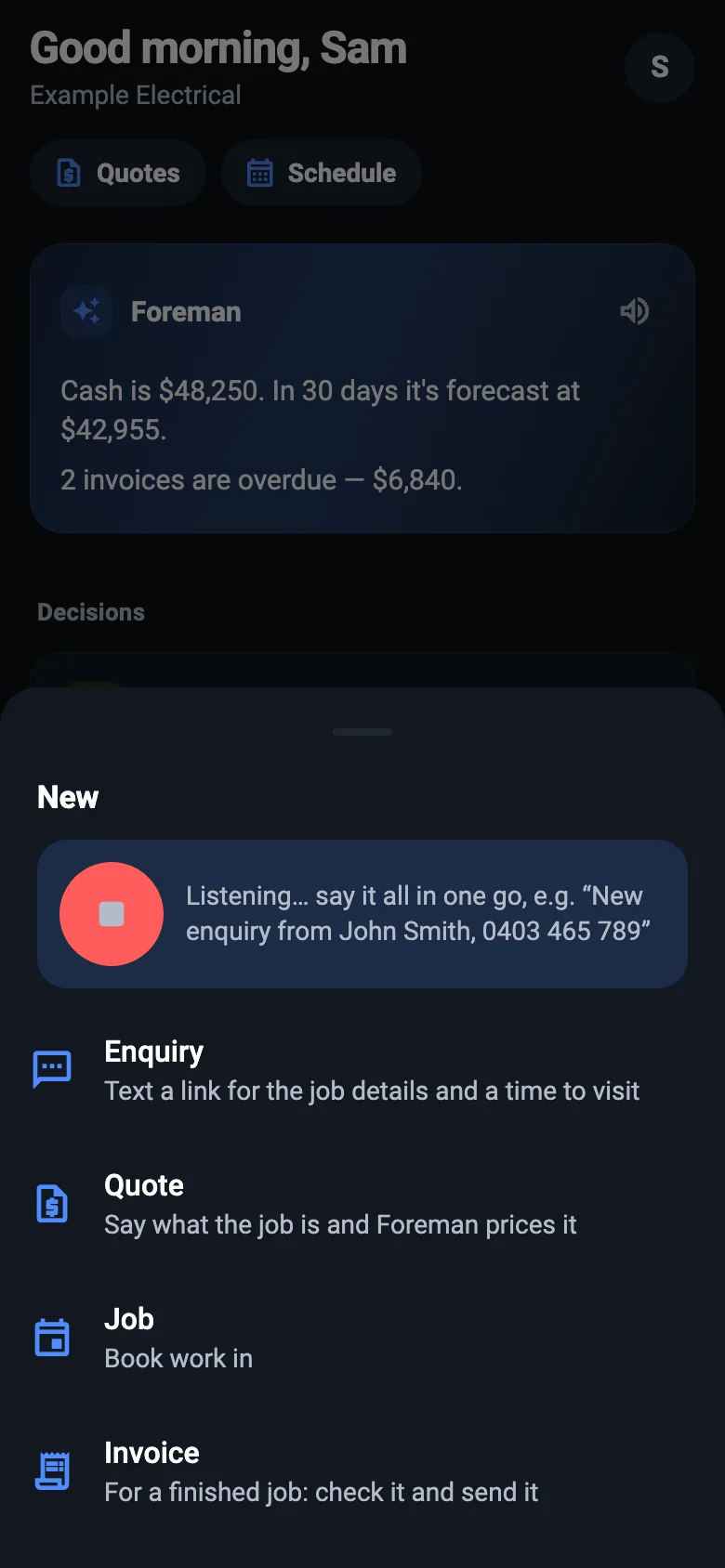
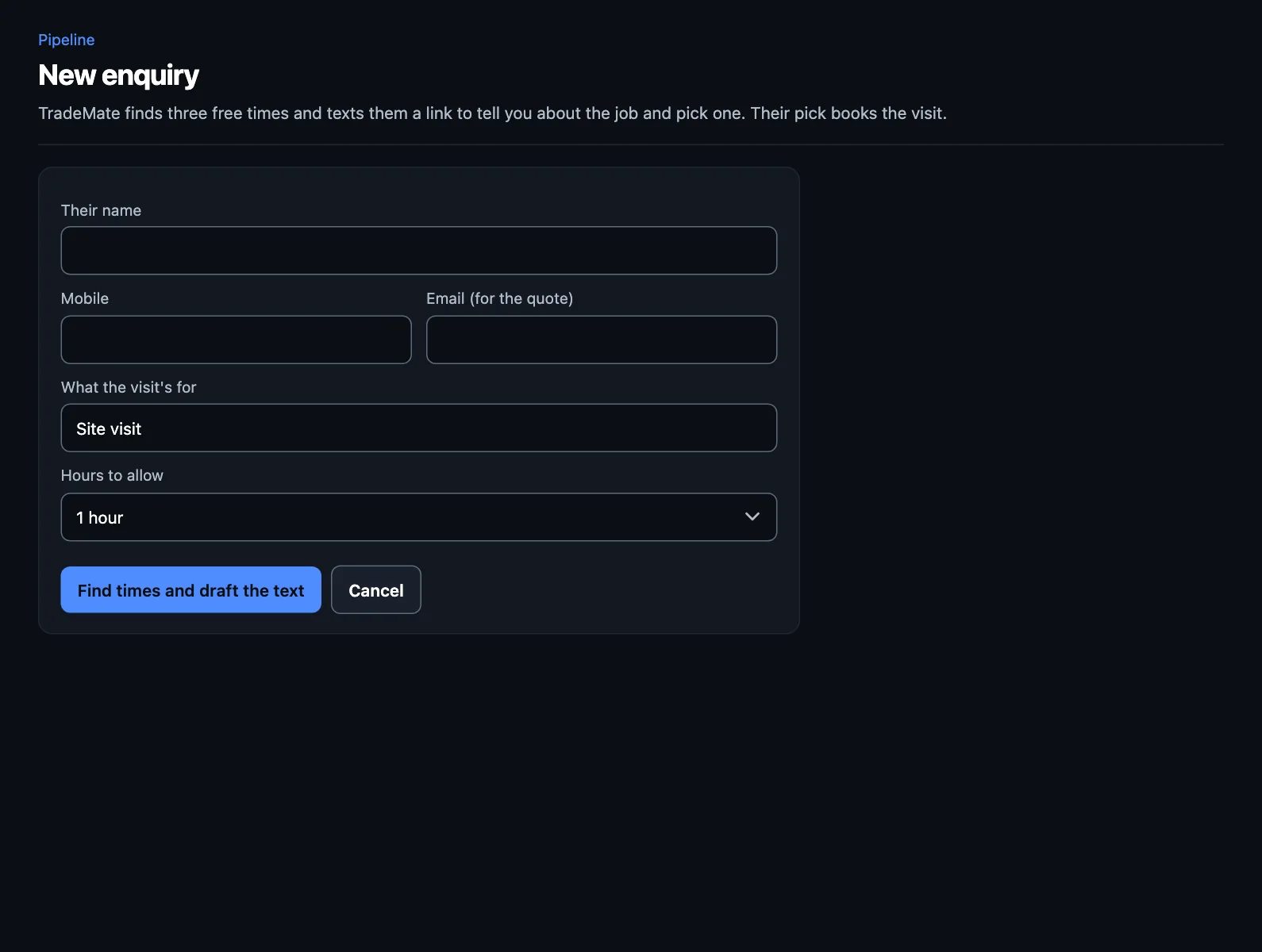
TradeMate finds three free times in your diary and drafts a text with a link. You check the text and send it. At a computer, it's + New, then Enquiry.
2. The customer picks a time
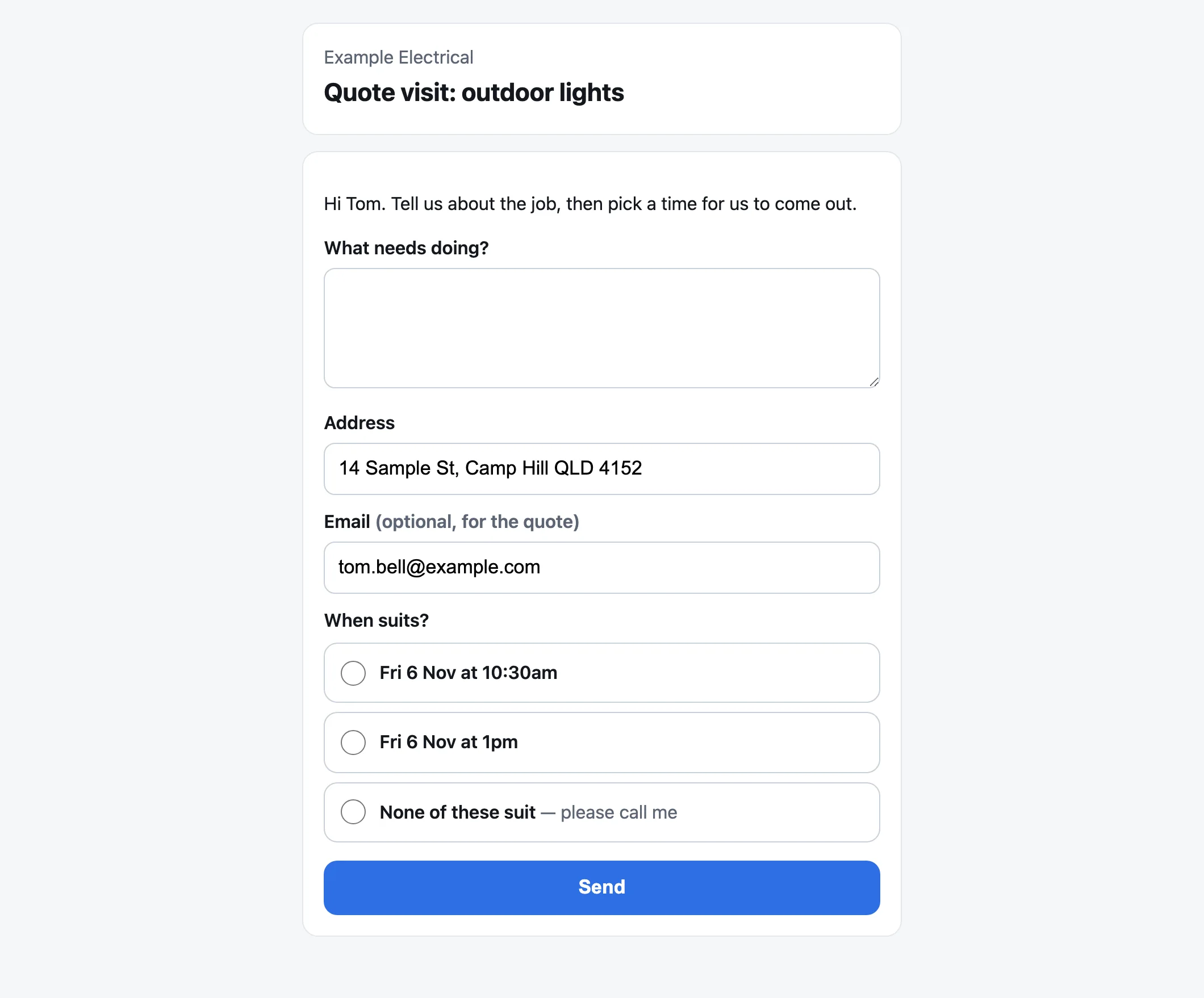
Tom opens the link on his phone, tells you about the job, and picks a time. His pick books the visit: it's in your diary without a phone call.
3. You quote it from the van
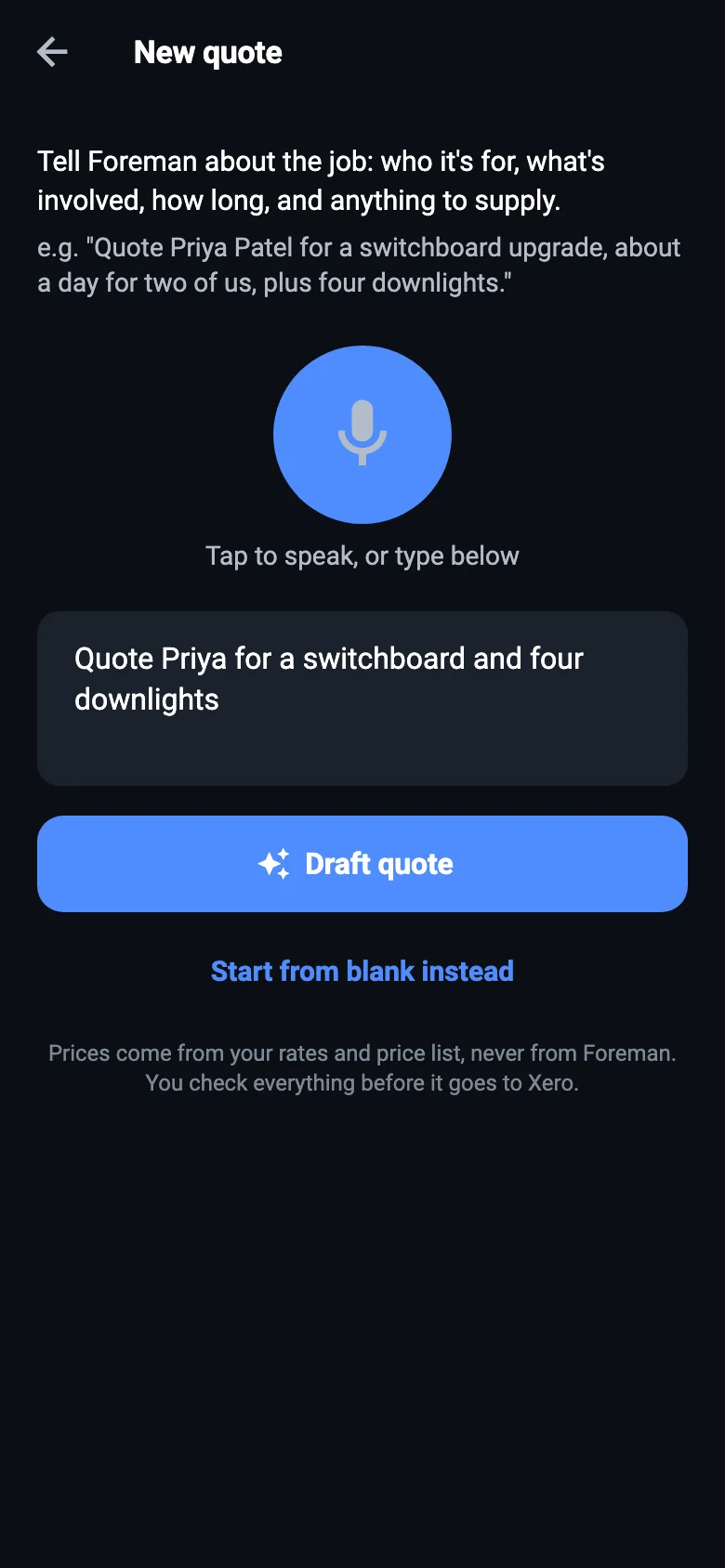
You've had a look and you know what's involved. Press +, then Quote, and say the job the way you'd tell a mate:
"Quote Priya for a switchboard upgrade, a day for two of us, plus four downlights."
Foreman, TradeMate's AI, works out the customer, the hours and the materials, and prices it from your own rates and price list. If he can't price something, he leaves it for you rather than guessing.
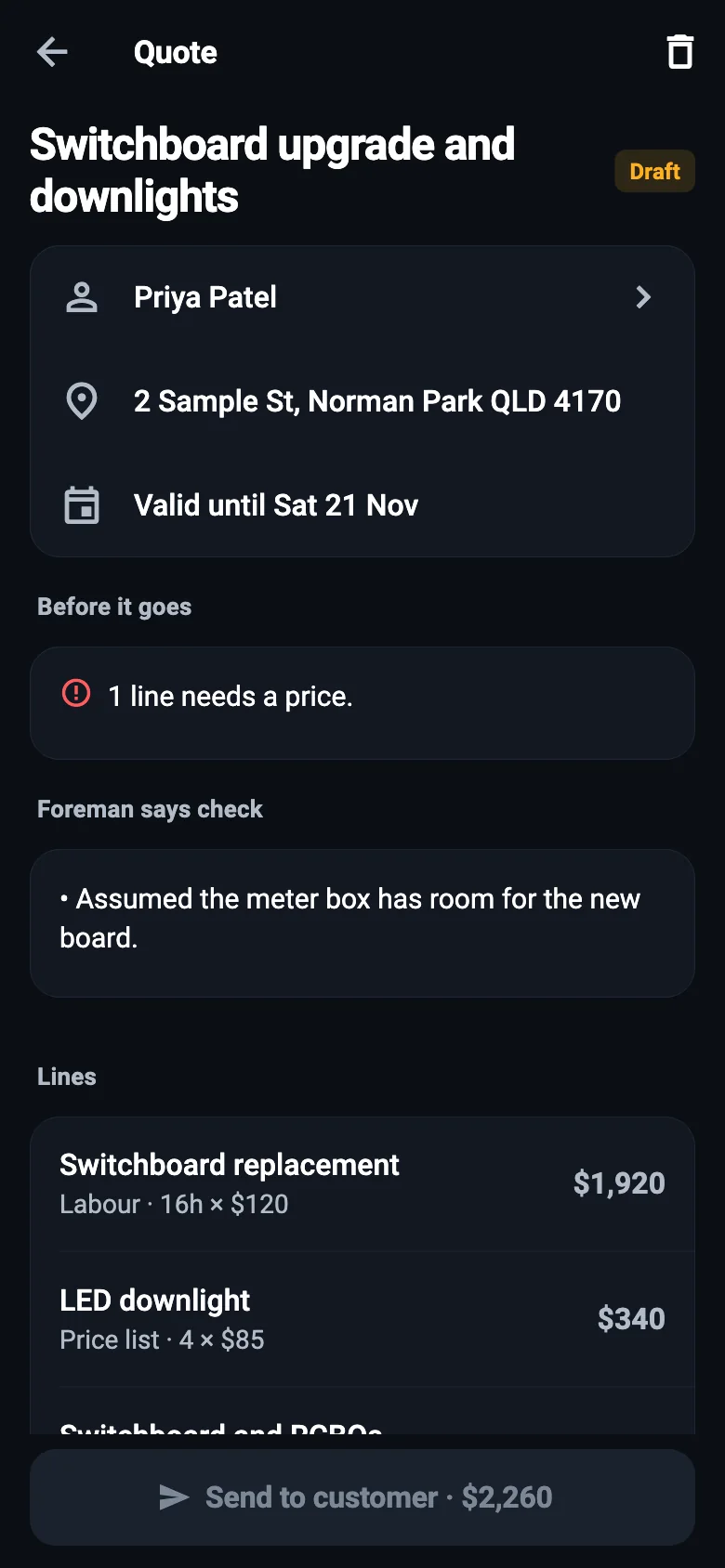
4. You check it and send it
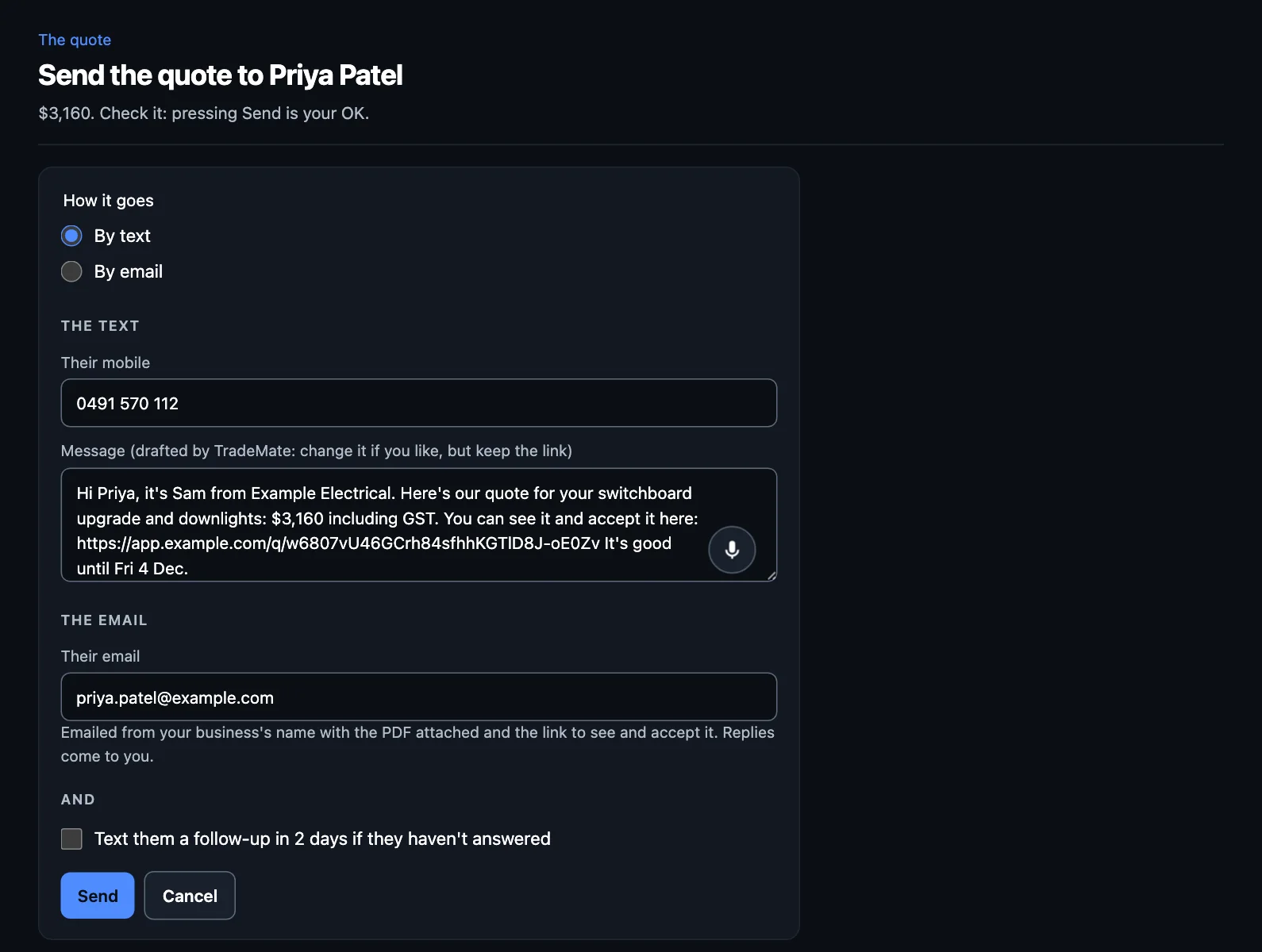
Fix anything that's not right. Then send it by text, by email, or both. Pressing Send is your OK. You can also tick a follow-up text for a couple of days later if they haven't answered.
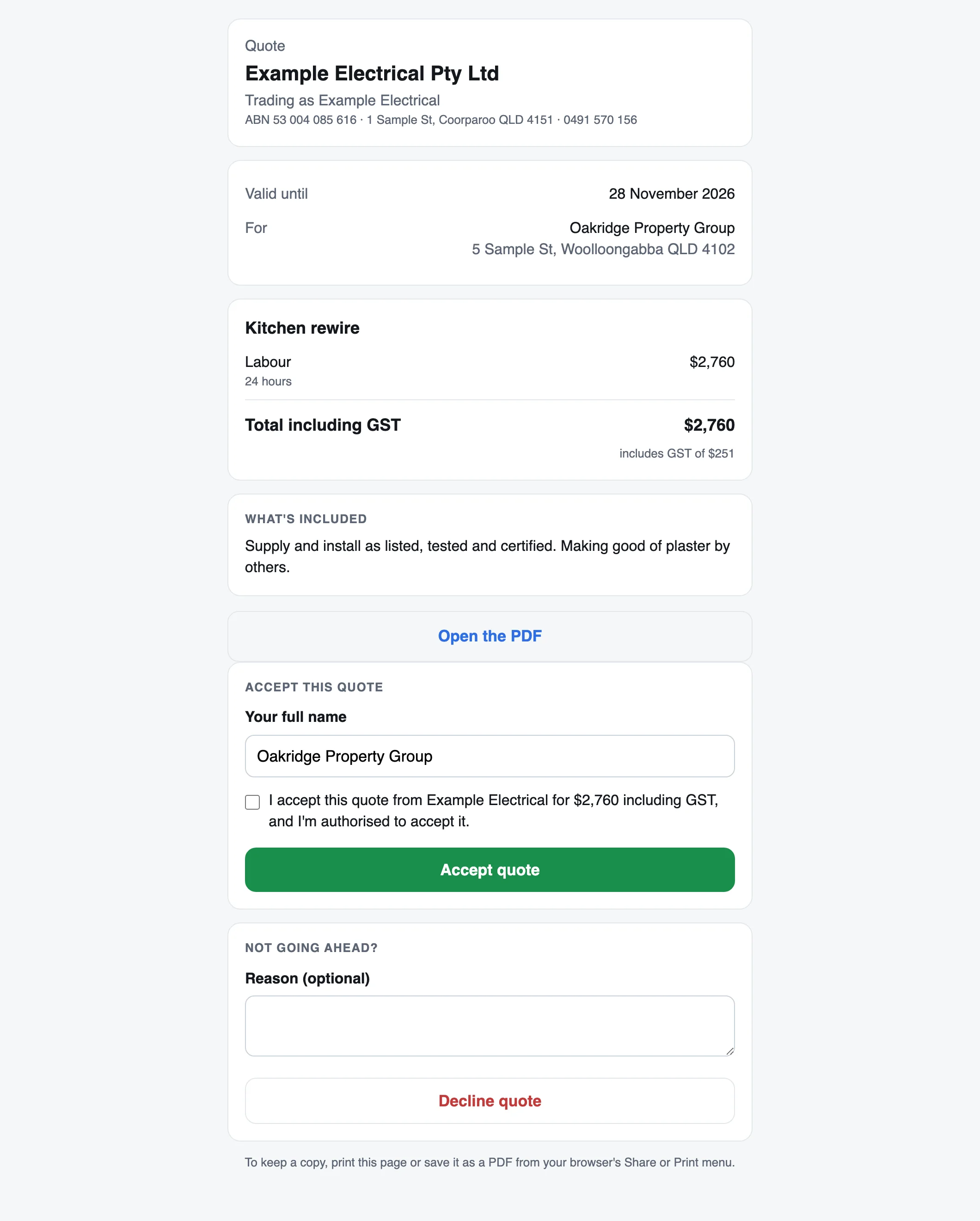
5. The customer accepts on their phone
Priya gets a link to the quote. She reads it, types her name, and accepts. You don't need to chase a signature, and you see when she has answered.
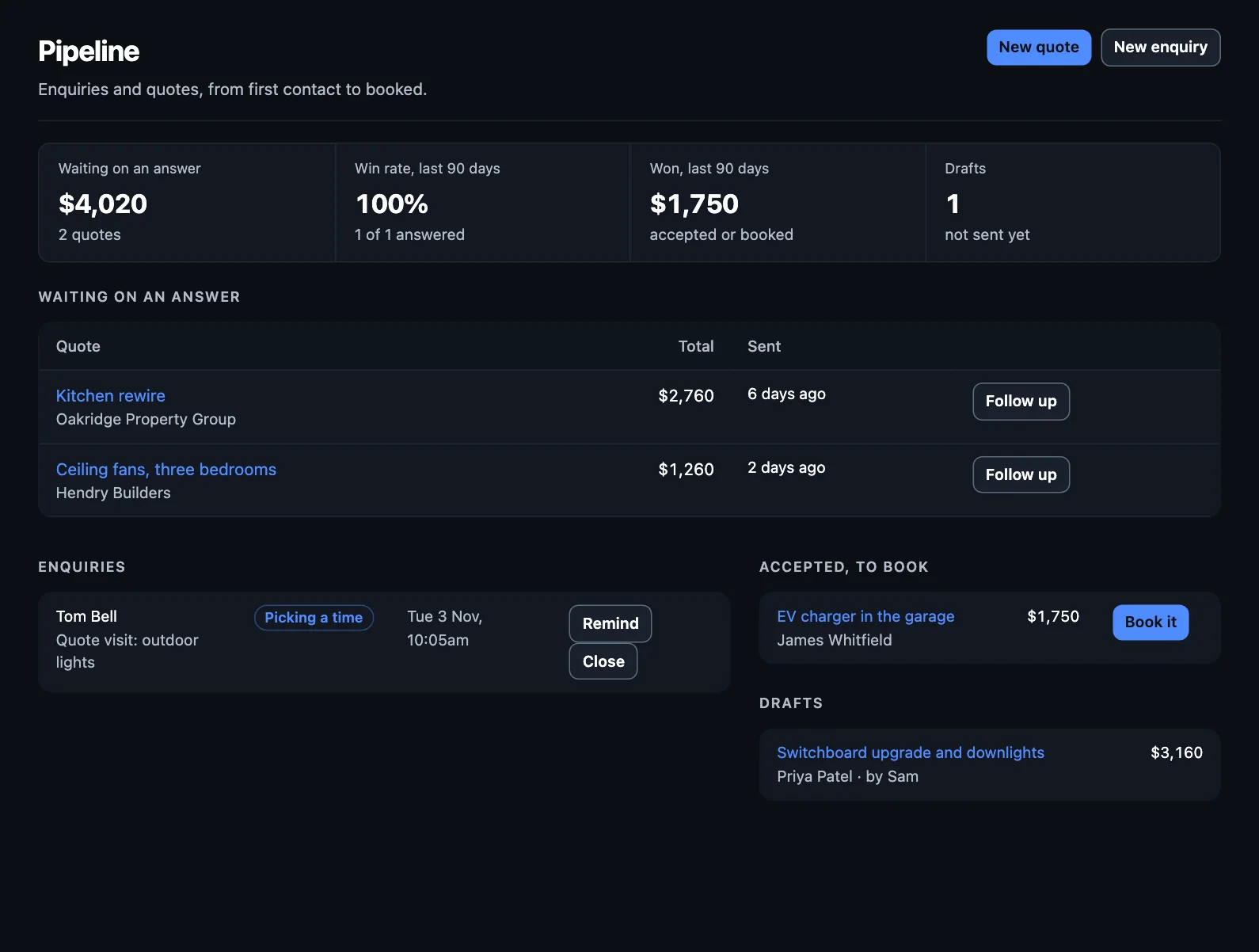
If she hasn't answered in two days, the Follow up quotes automation writes her a short text and waits for your OK.
6. You book the job
Accepted quotes wait in Pipeline under Accepted, to book. Press Book it, choose the day and who's on it, and it's in the diary. You can text the customer the booking from there.
A big job? Split the quote into stages first, such as rough-in and fit-off. Each part is booked, done and invoiced on its own.
The team can see what's on in Operations, and how full the coming weeks are.
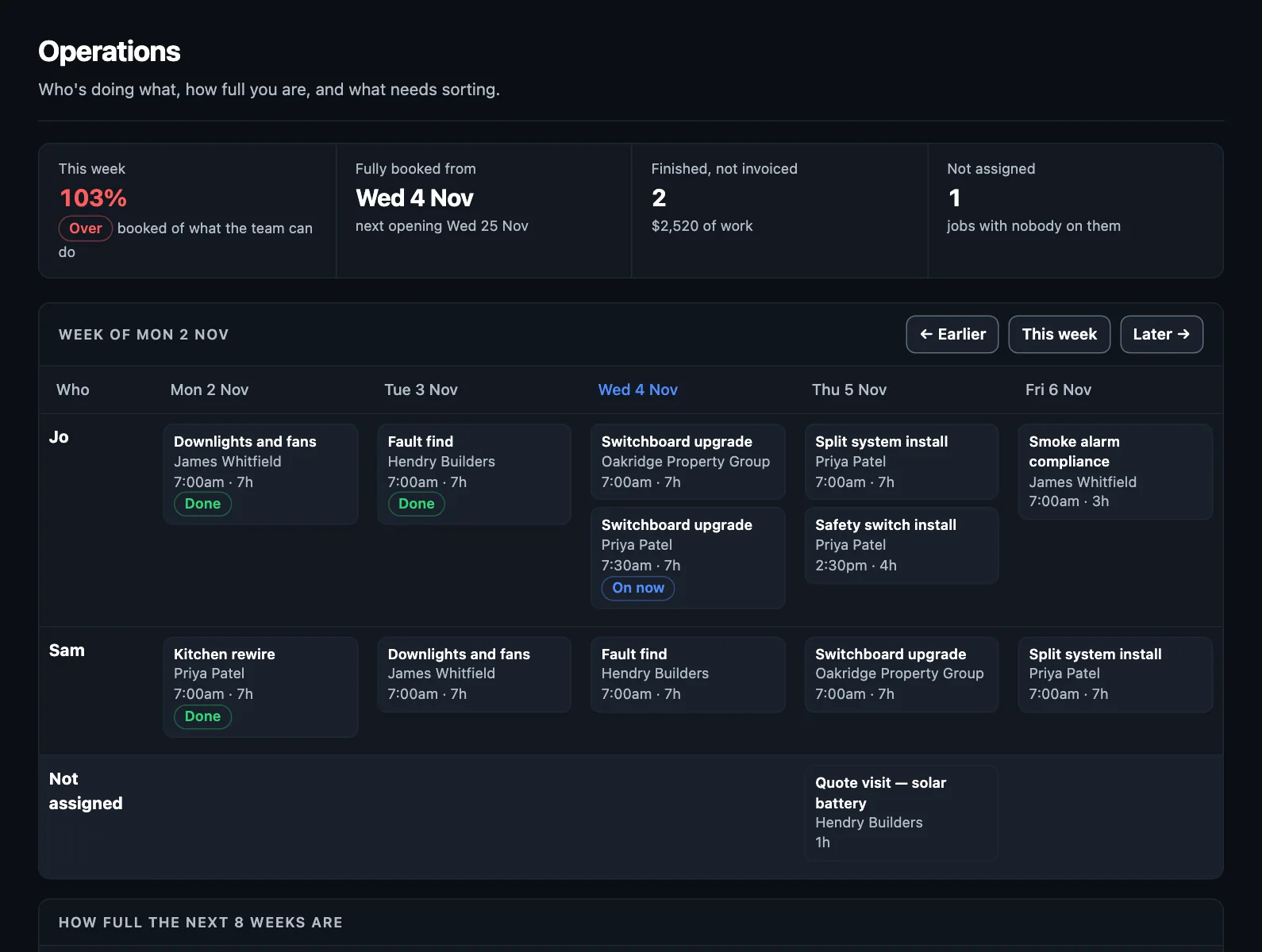
More on booking and the schedule.
7. You do the work, with the job card
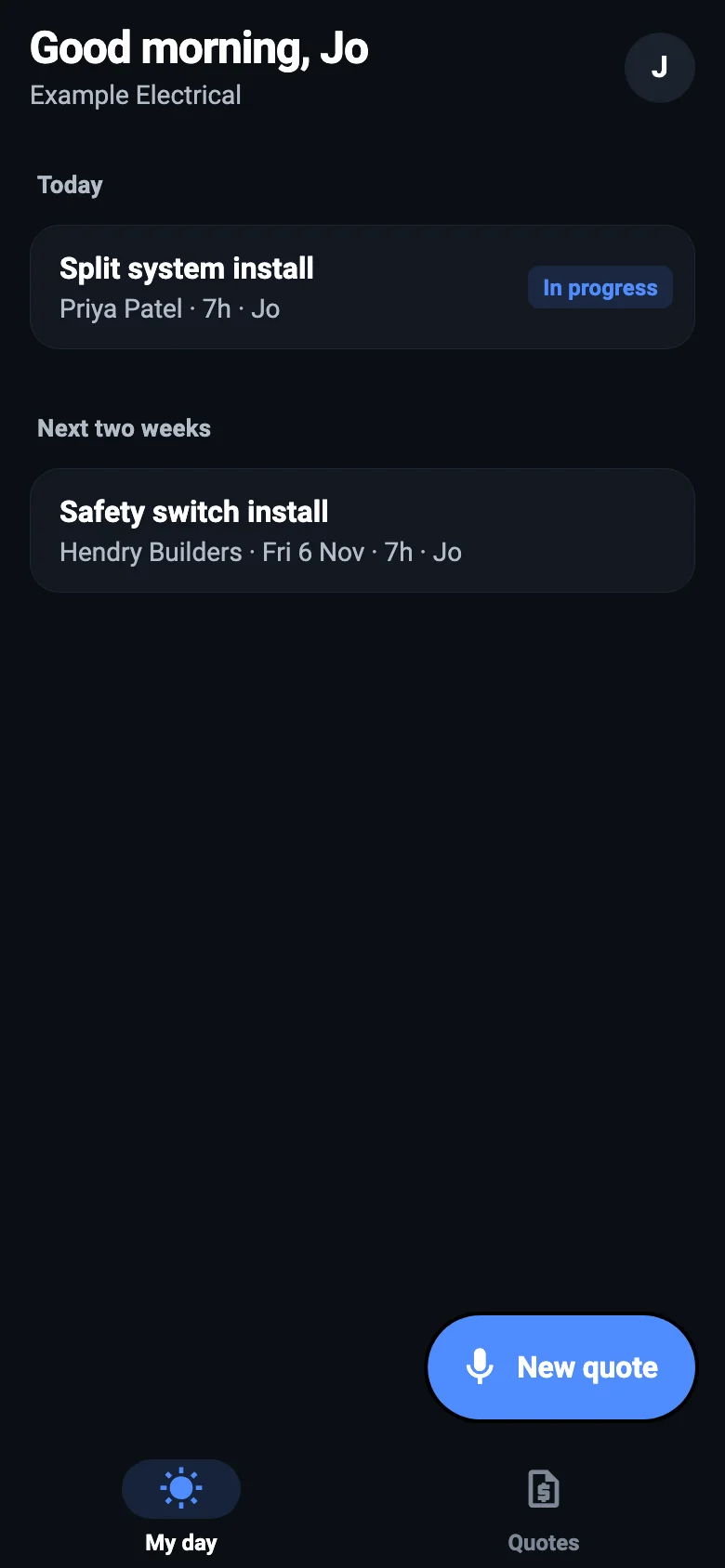
On the day, Jo opens the job on her phone and everything's there: the customer, the address with directions, and the checklist for that kind of job. She clocks on, ticks steps off, adds materials and takes photos. Or she presses Tell Foreman and says it: "Used four RCBOs, and the old board had rewireable fuses."
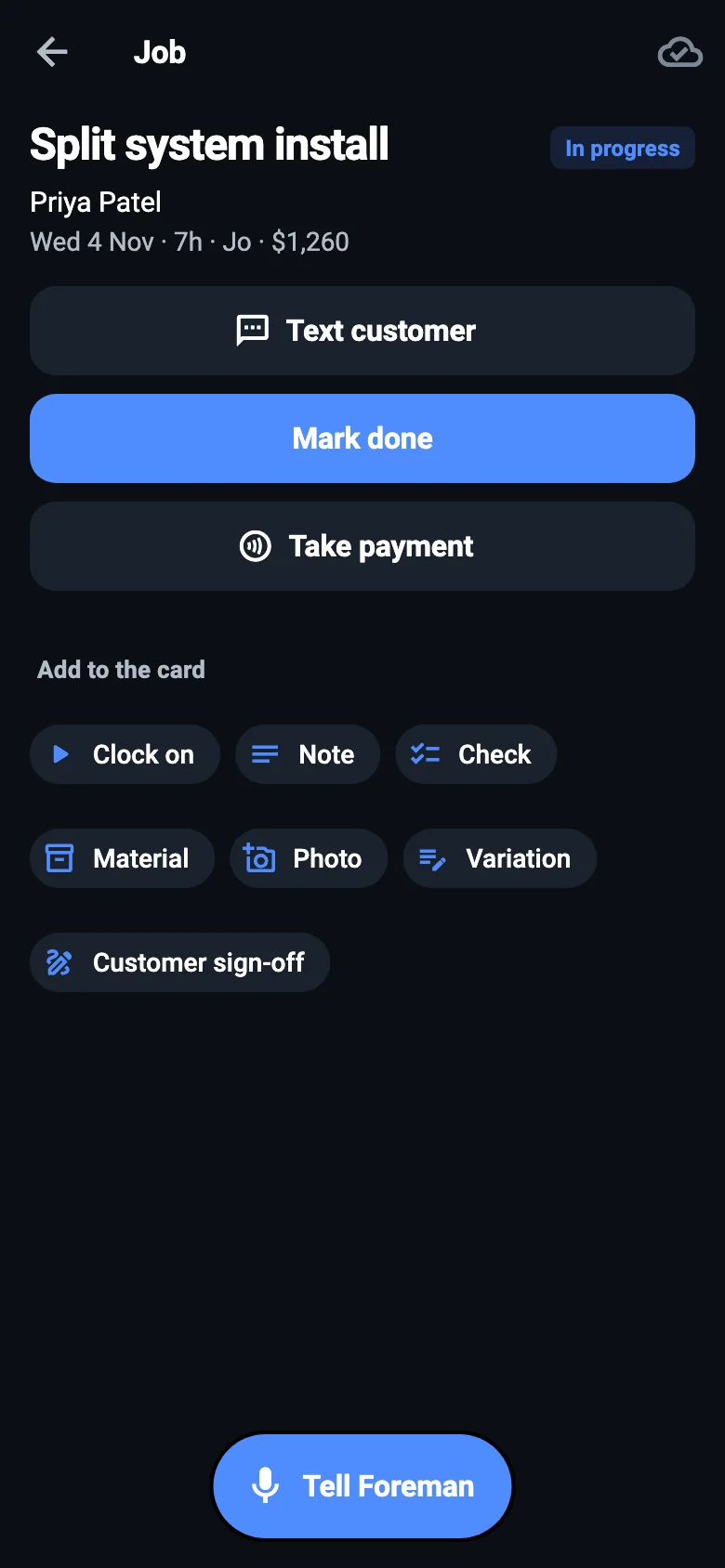
Found something that wasn't in the quote? Add a Variation with its price. The customer signs for it on the phone before the work's done, and it goes on the invoice by itself.
8. Mark it done, and the invoice is ready
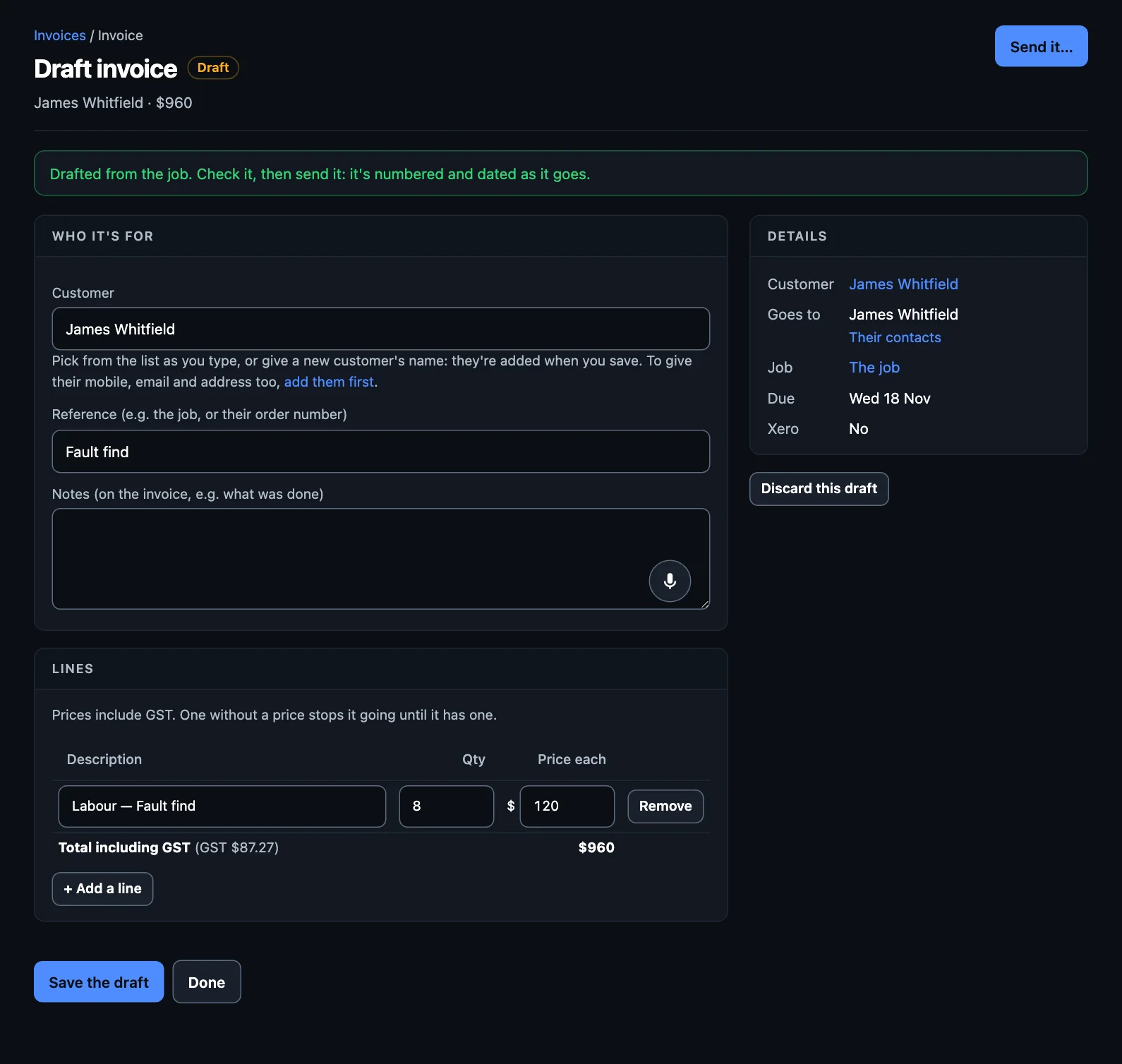
Press Mark done. TradeMate drafts the invoice from the card: the time and materials, or else the job's price, plus signed variations. You check it and send it.
9. You get paid
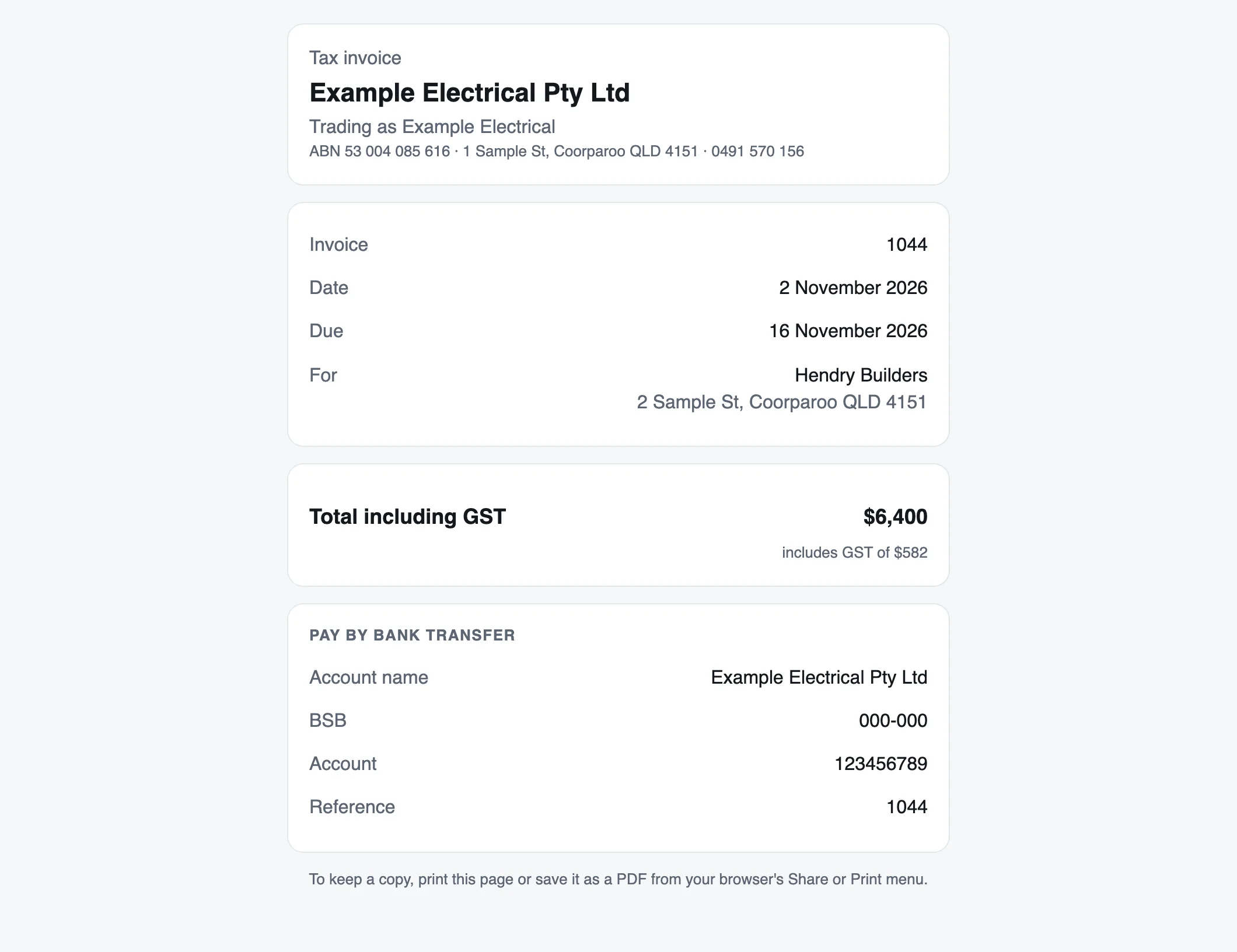
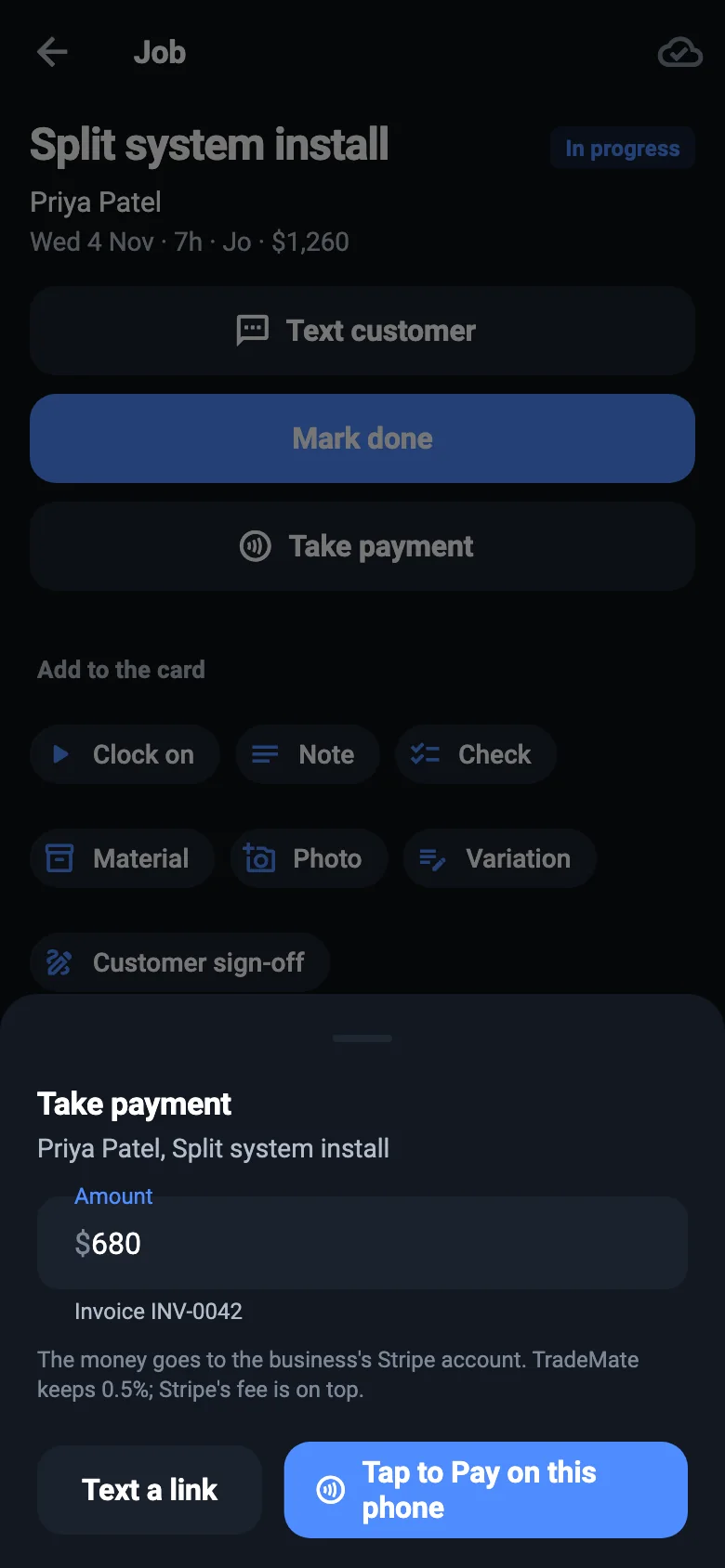
The customer gets a link to their invoice, with your bank details, and a button to pay by card if you've set card payments up. On site, you can take payment there and then: press Take payment on the job card, then tap their card on your phone, or text them a link.
If it's paid, that's the end of it. If it isn't, Chase late payers writes a reminder a day after it's due and another a week later, each waiting for your OK, then tells you it's worth a call.
More on invoices and getting paid.
10. Next morning, Foreman tells you what's next
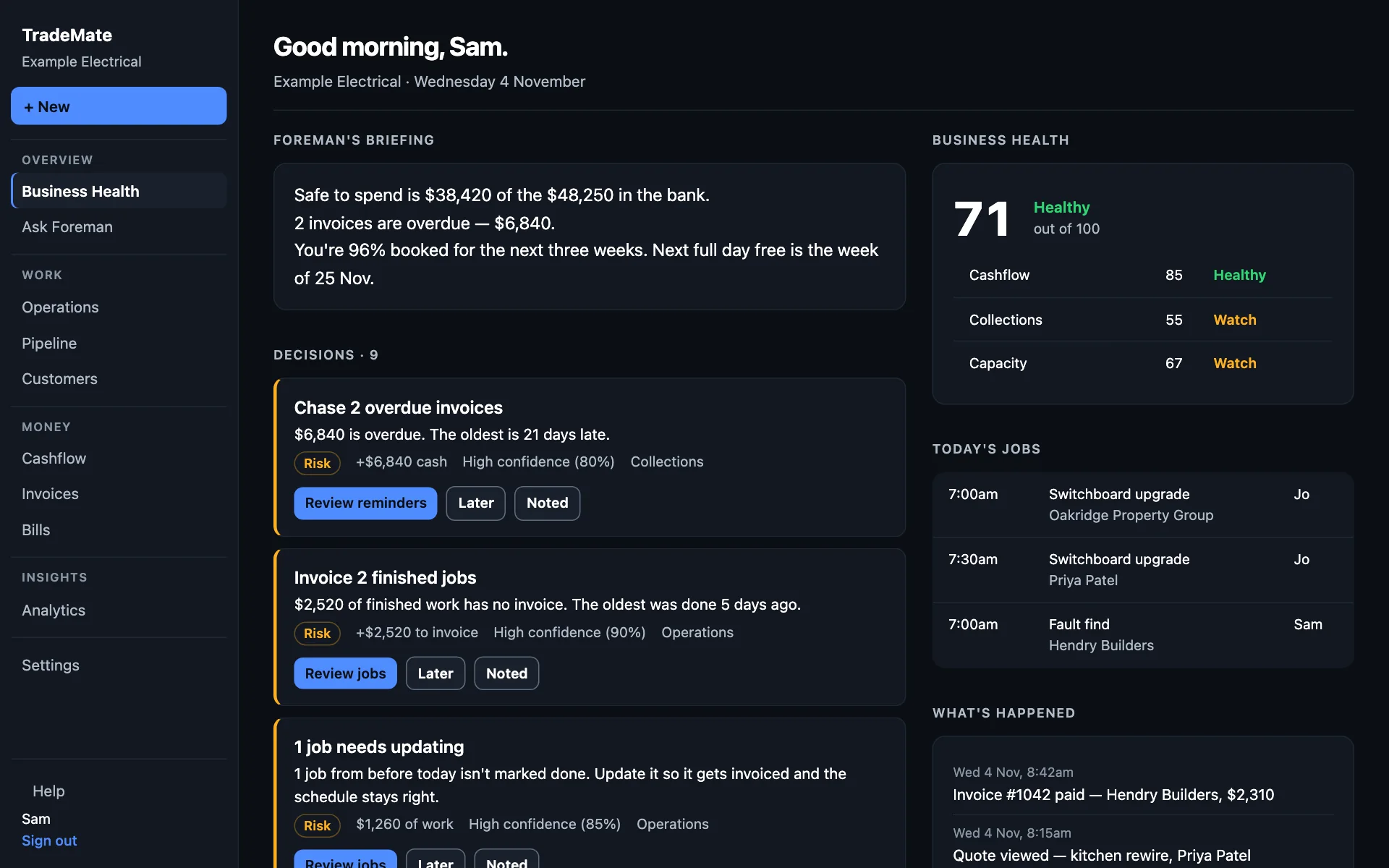
Each morning Foreman reads your jobs, invoices and bank, and tells you what matters today, with the decisions waiting for you, most important first.
A year later, when Priya's smoke alarm check comes due, TradeMate offers her three times by text. That's repeat work you don't have to remember.
More on Today and Business Health.
NextSet up your business →