Invoices and getting paid
Mark a job done and its invoice is drafted from what was used and how long it took. You check it, send it, and TradeMate keeps track until it's paid.
Where invoices come from
- From a job: mark it done on the phone, or press Draft invoice in Operations, or Draft the invoice on the job's page.
- On their own: Invoices → New invoice, for work that isn't a job in TradeMate, such as a one-off or something from before.
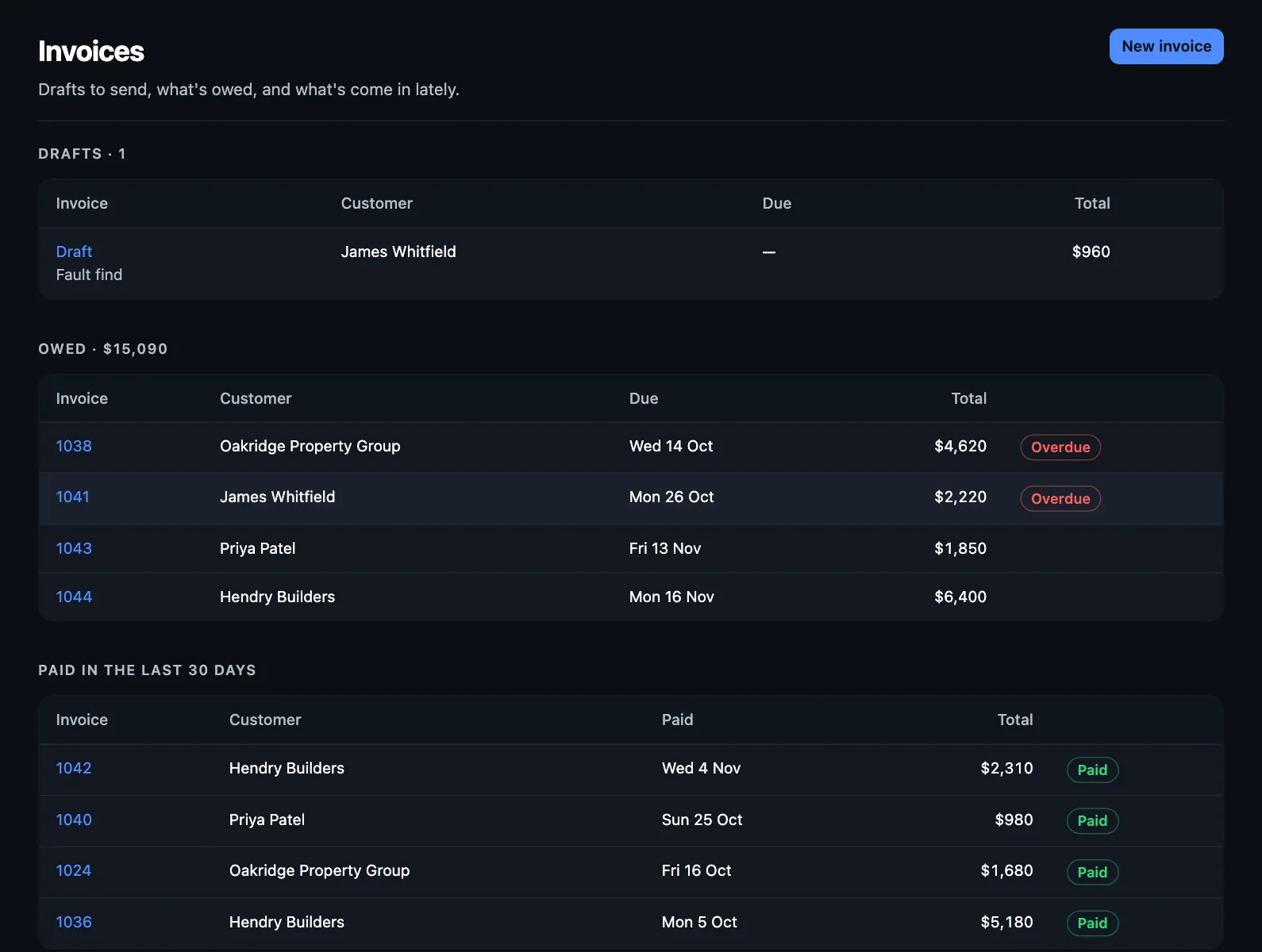
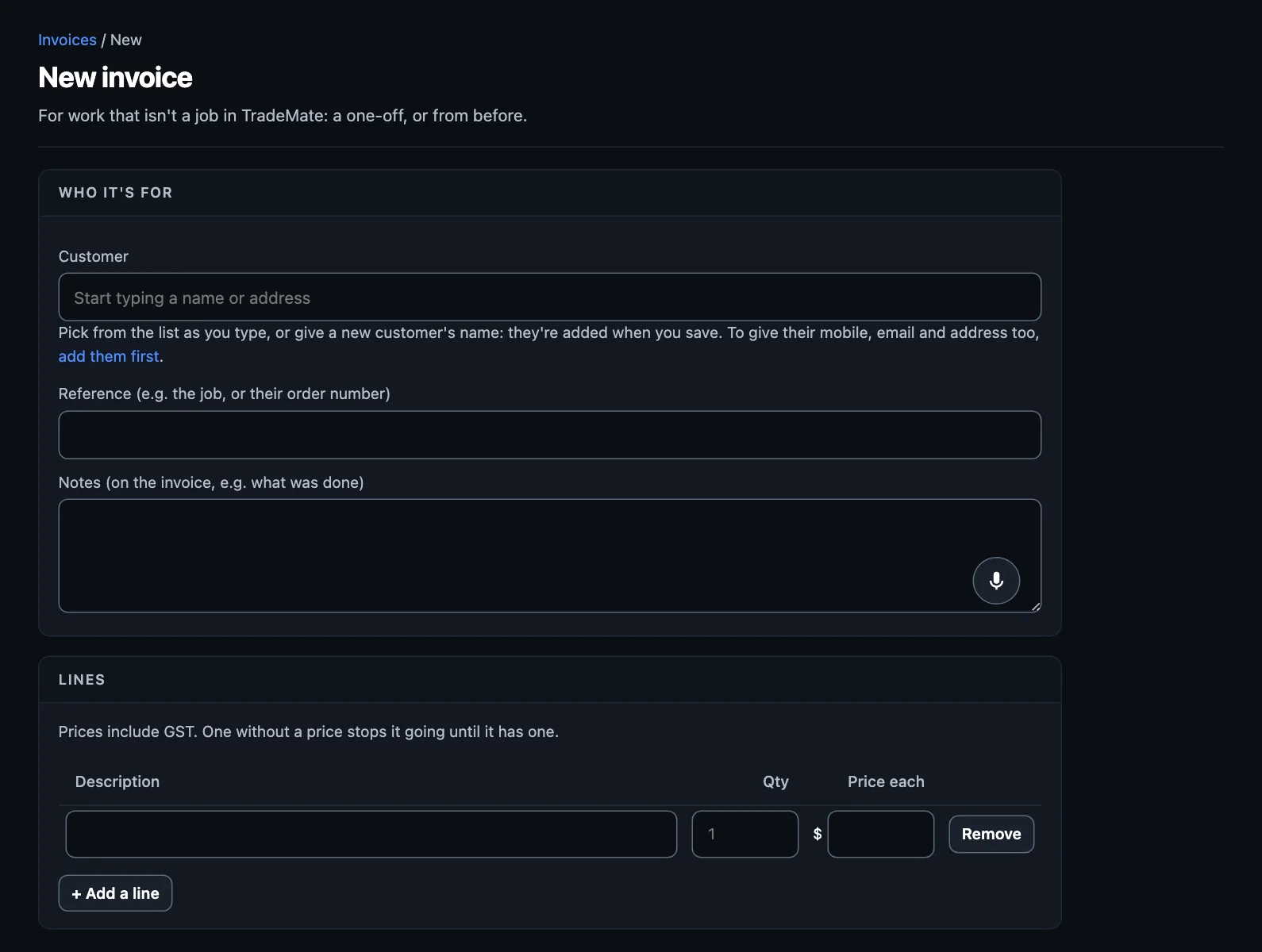
A job's invoice comes from its card: the time on the job and materials used, or else the job's price. A job from part of a split quote is its share of the quote. Signed variations go on at their agreed prices.
Check it and send it
- Open the draft. Check who it's for, the reference, any notes, and the lines. A line with no price stops it going until it has one.
- Press Send it, and choose text, email or both.
- Pressing Send is your OK. It gets its number and date as it goes.
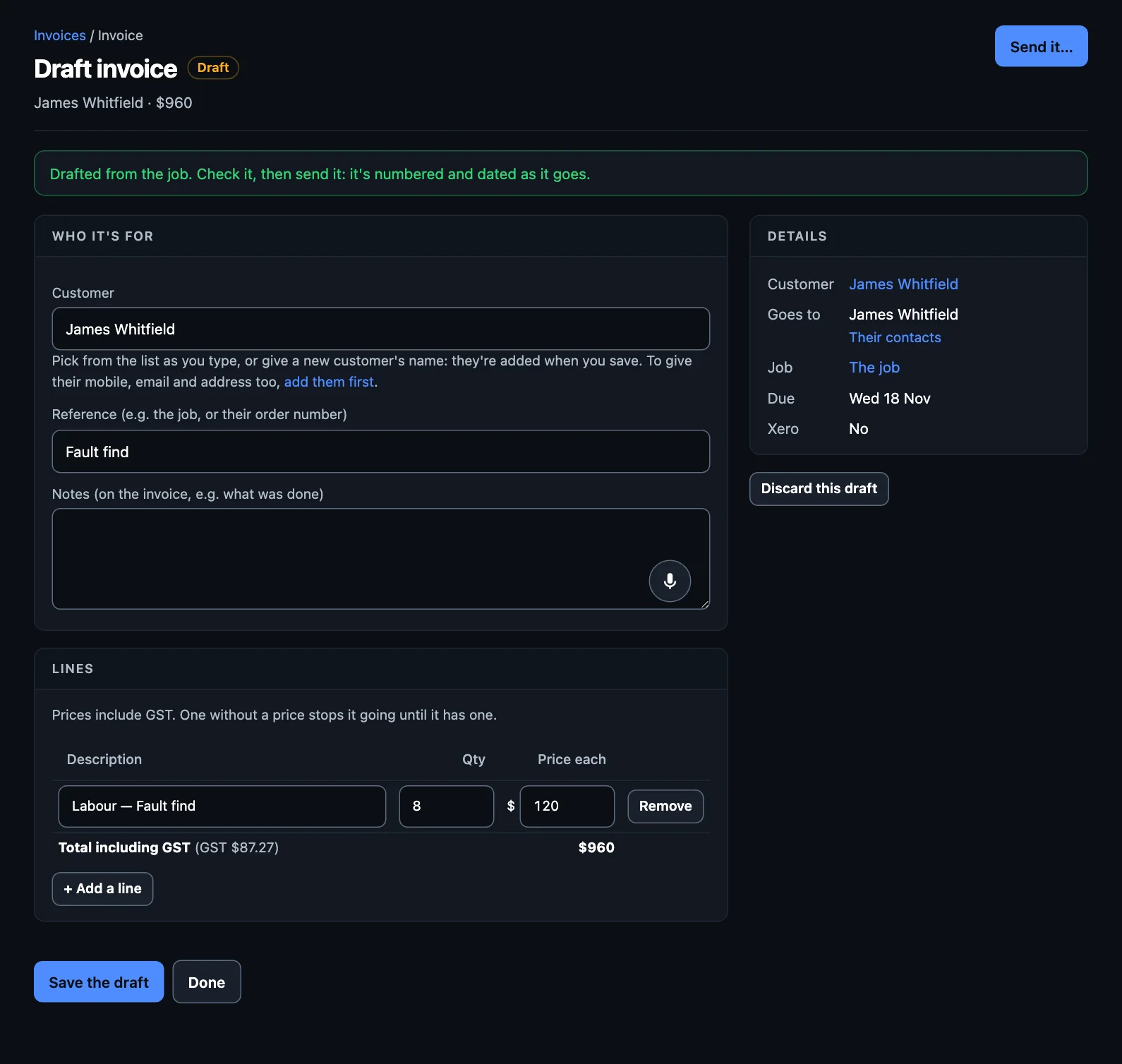
Before your first one, add your ABN and bank details: Set up your business shows how. Don't want it? Discard this draft.
On the phone, drafts are under Money → Invoices.
What the customer sees
A page with your details, the lines, the total with GST, and how to pay: your bank details, and a pay button if you've set up card payments. They can download a PDF.
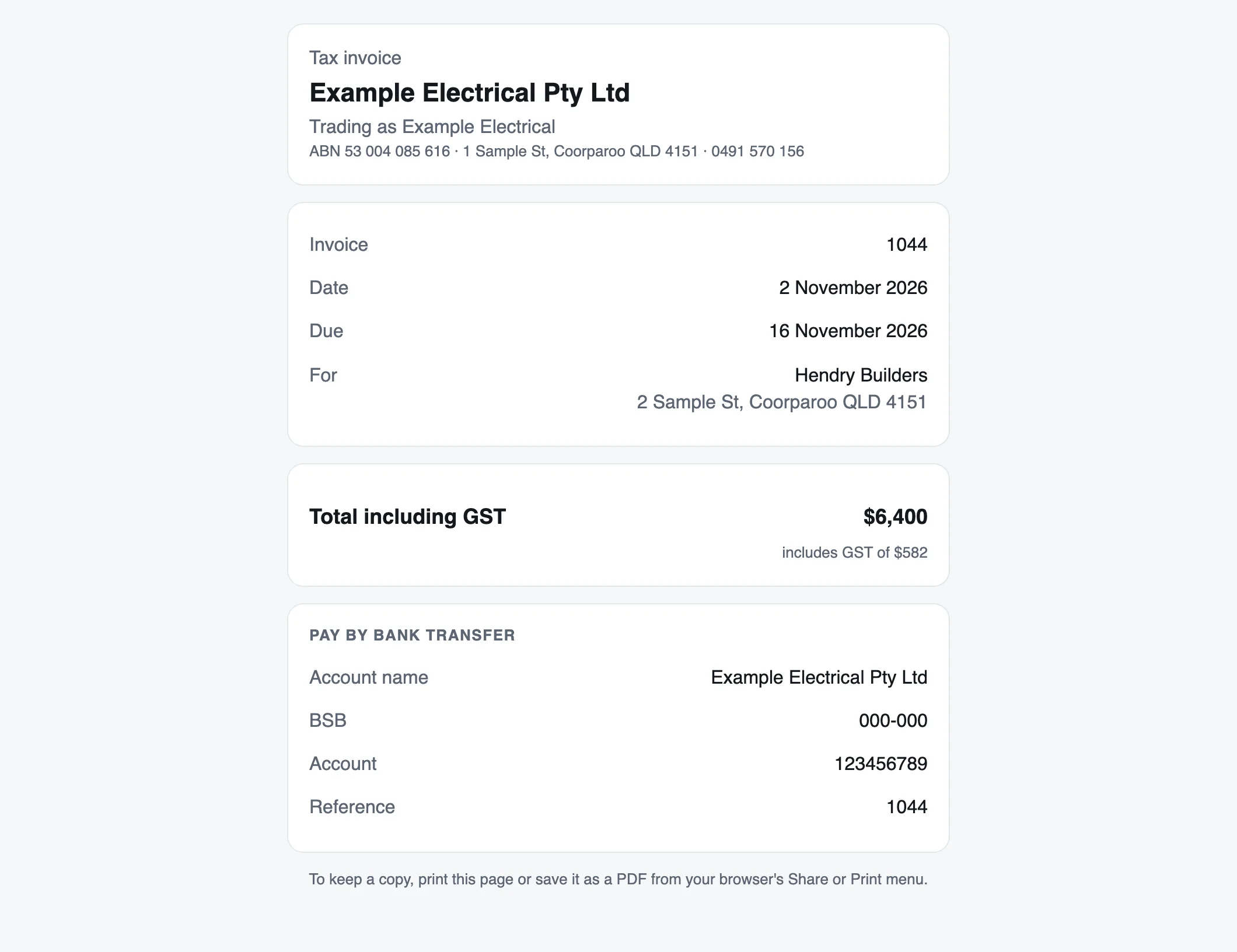
Invoices go to the person set under Who gets invoices on the customer.
Marking one paid
Card payments through TradeMate mark themselves paid. With Xero connected, payments you record there come back. Otherwise, open the invoice and mark it paid.
Chasing late payers
The Chase late payers automation is on from the start:
- A day overdue, it writes an email reminder with the invoice attached, which waits for your OK.
- A week later, another.
- A week after that, it tells the office it's worth a call.
Paid stops it straight away. To review them, go to Cashflow on the web, or Money → Overdue invoices on the phone. Tick the ones to send: each goes as written. If you remind someone by hand, the next one's put off.
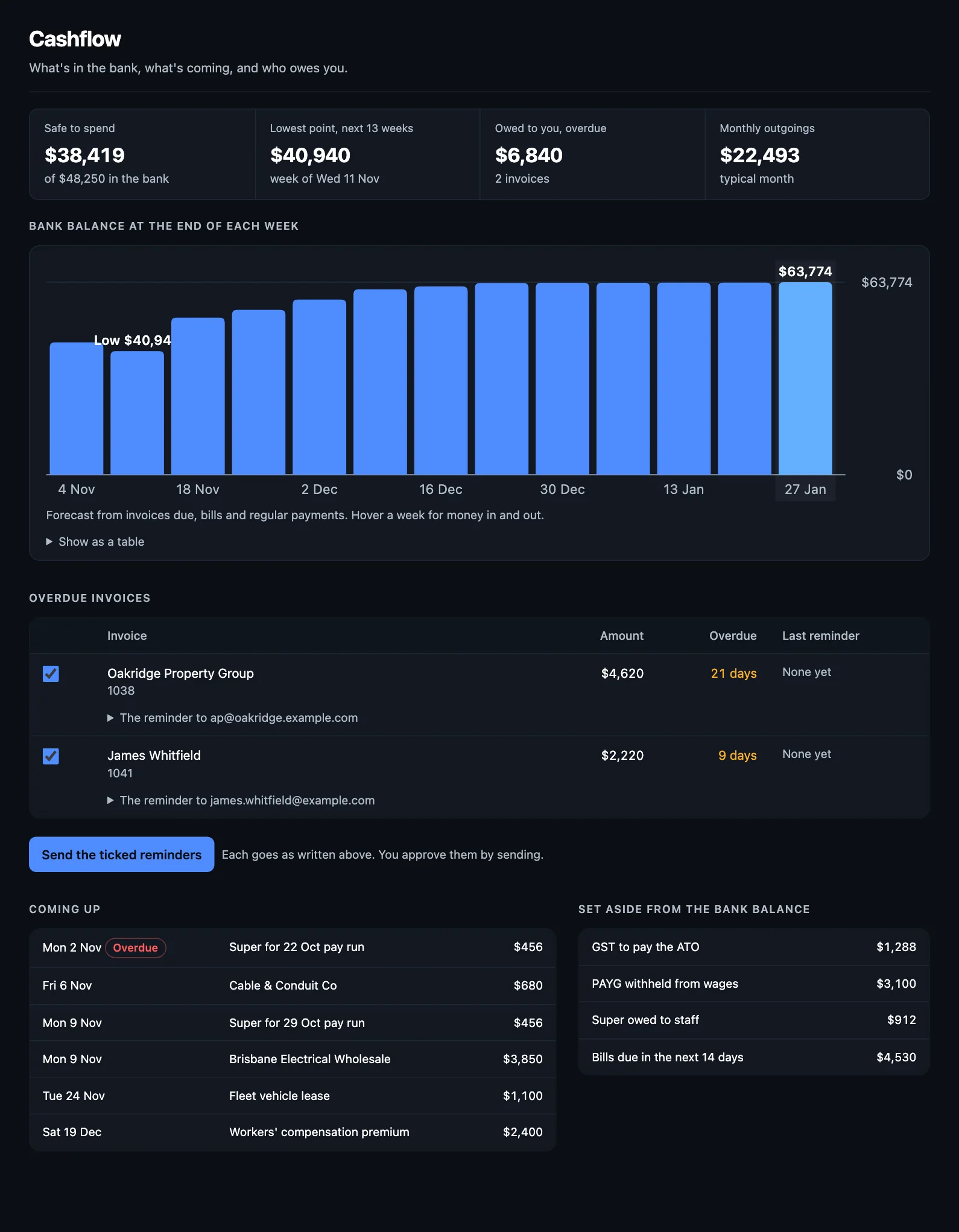
Happy with the wording? You can let them go without asking. See Automations.
Taking card payments
Take a card by tapping it on your phone, with a texted link, or from the invoice's page. The money goes into your own Stripe account.
- In the web app, go to Settings → Card payments and follow the steps to connect or set up a Stripe account. Only the owner can do this.
- That's it. Take payment now works on the job card.
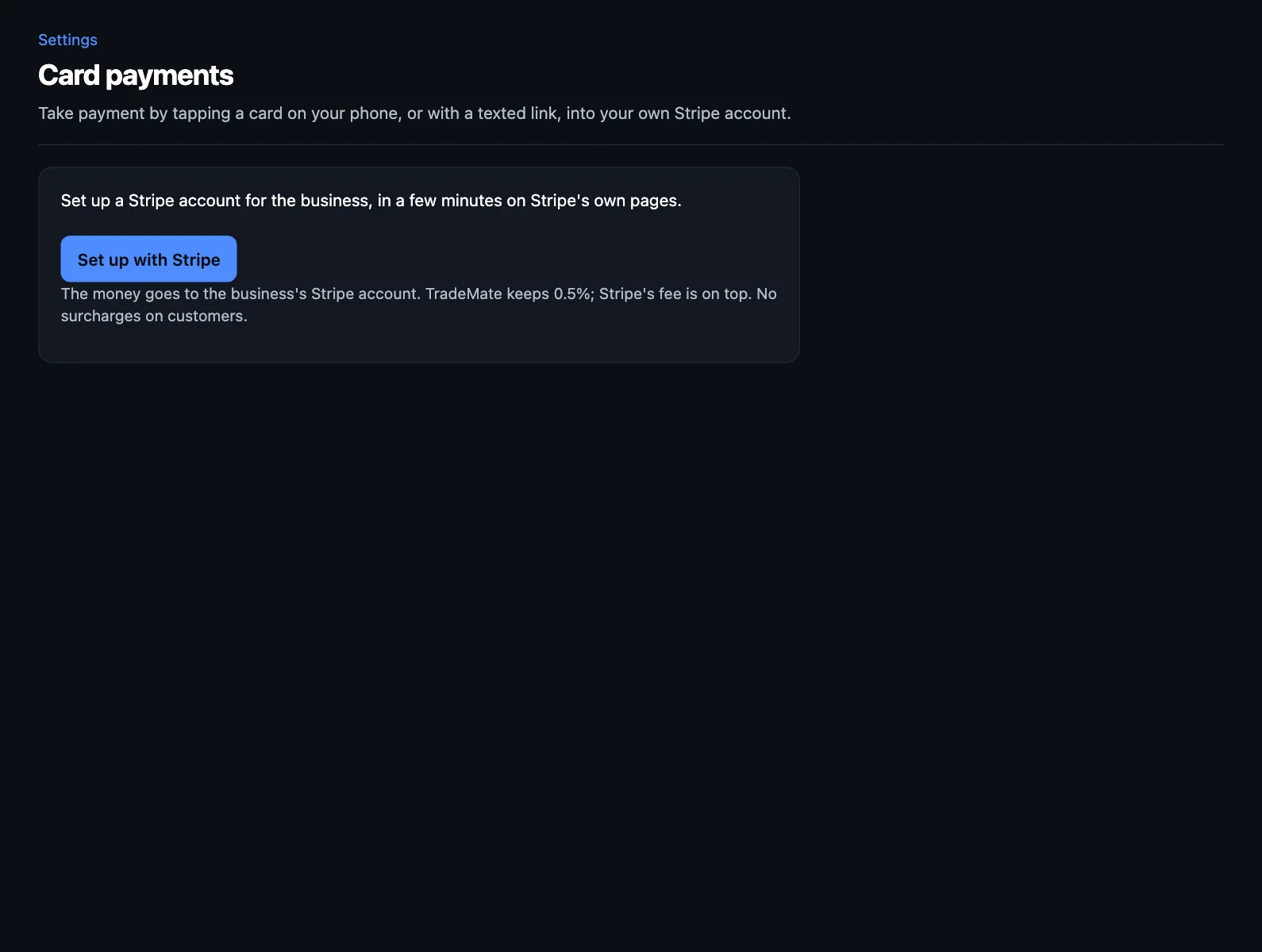
What it costs: TradeMate keeps 0.5% of each card payment, and Stripe's fee is on top. Customers aren't charged a surcharge.
With Xero
If you've connected Xero, each invoice is copied there as it's sent, so your books stay right. If someone changes one in Xero, you'll see Changed in Xero beside it and choose which to keep. See Connections.
NextCashflow and bills →